
How to Install, Update, and Optimize Hameral Indicators and Packs:
The Complete NinjaTrader 8 Guide

Hameral indicators and packs are easy to install when you follow the steps in the correct order.
A new installation is slightly different from an update.
Some Hameral tools also need special settings, such as Tick Replay.
This complete guide explains:
- How to install a Hameral indicator or pack
- How to update an existing Hameral product
- How to remove the previous version
- How to clear the NinjaTrader cache
- How to install a Hameral workspace
- Which tools need Tick Replay
- How to combine Tick Replay and normal charts
- How to improve NinjaTrader loading speed
- Why historical data may be missing
- Where to find Hameral drawing tools
- How to solve common installation and license problems
This guide applies to individual Hameral indicators, Hameral indicator packs, Hameral workspaces, and other NinjaTrader 8 tools.
Quick Answer
For a new installation
- Download the Hameral ZIP file.
- Do not unzip it.
- Open NinjaTrader.
- Go to Tools → Import → NinjaScript Add-On.
- Select the downloaded ZIP file.
- Complete the import.
- Restart NinjaTrader.
For an update
- Save your current workspace.
- Remove the old Hameral NinjaScript assembly.
- Close NinjaTrader completely.
- Delete the NinjaTrader cache folders: cache, day, minute, replay, and tick from
Documents → NinjaTrader 8 → db. - Reopen NinjaTrader.
- Import the updated Hameral ZIP file by following the same steps used for a new installation.
- Restart NinjaTrader again.
- Install the new workspace when one is provided.
- Check the futures contract and Tick Replay settings.
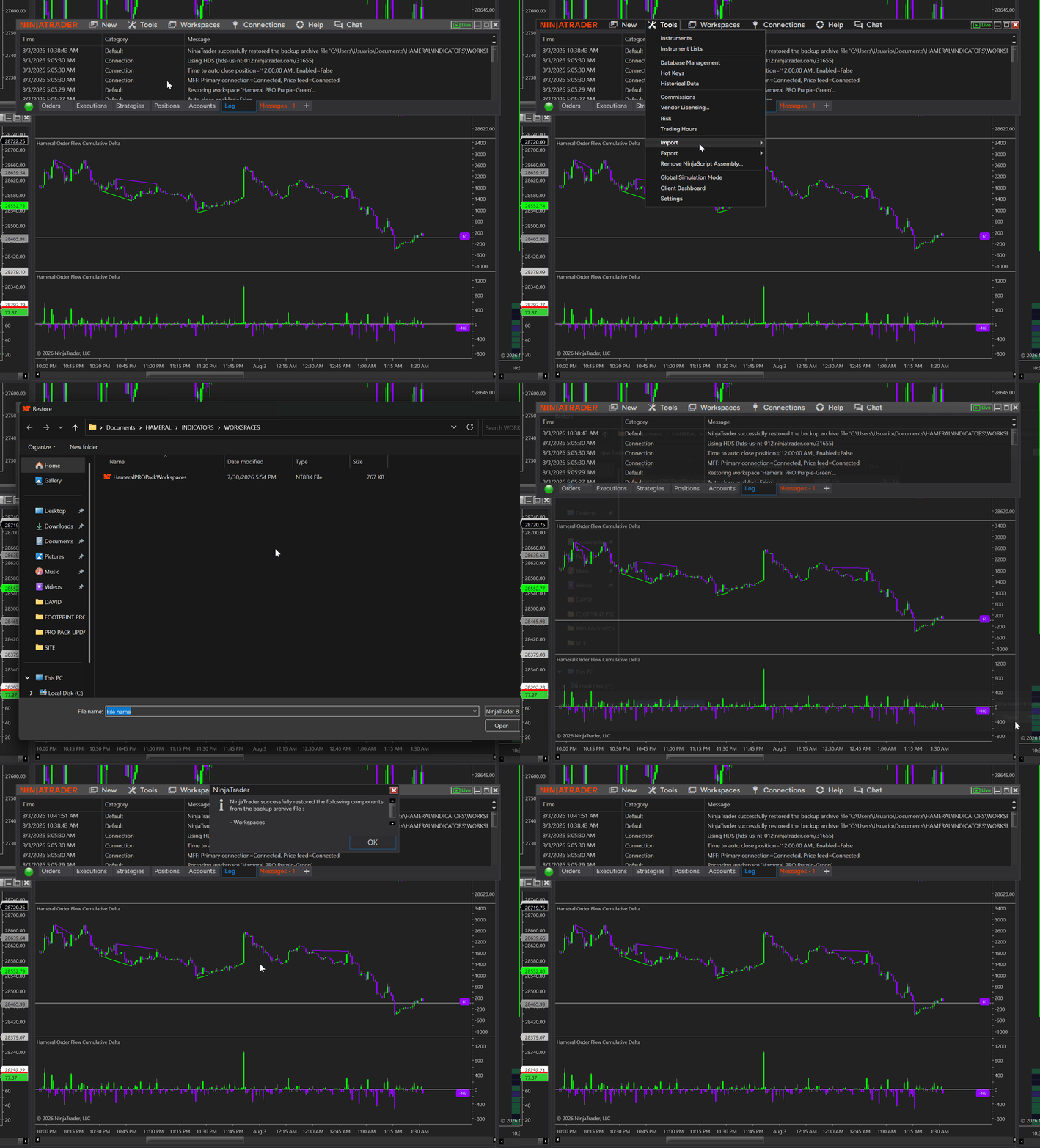
To install a workspace
- Identify the workspace ZIP file included with your order.
- Unzip it. Open NinjaTrader.
- Go to Tools → Import → Workspace.
- Select the workspace file.
- Complete the import.
- Restart NinjaTrader.
- Open the Workspaces menu and select the imported Hameral workspace.
- Check that the charts use the current futures contract.
Note:
When the workspace is provided as an XML file instead of a ZIP archive, copy it into:
Documents → NinjaTrader 8 → workspaces.
To install chart templates
- Identify the templates folder included with your order.
- Unzip the templates folder.
- Close NinjaTrader completely.
- Copy the template files into: Documents → NinjaTrader 8 → templates → Chart.
- Reopen NinjaTrader.
- Open a new chart.
- Right-click the chart and go to Templates → Load.
- Select the desired Hameral chart template and click Load.
Before You Start
Before installing or updating a Hameral product, check all the files included with your order.
You may receive:
- An indicator or pack ZIP file
- A workspace ZIP file
- A folder containing chart templates
- A PDF guide
- Additional presets or support files
These files are not installed in the same way.
Make sure you identify the correct file before starting the installation.
Part 1: How to Install a Hameral Indicator or Pack for the First Time
Follow this process when the Hameral product has never been installed on your NinjaTrader platform.
Step 1: Download the Product
- Log in to your Hameral account.
- Open the Downloads section.
- Download the latest version of your indicator or pack.
- Save the ZIP file somewhere easy to find, such as your Downloads folder.
Important:
Do not unzip the Hameral indicator or pack file.
Step 2: Open NinjaTrader
- Open NinjaTrader 8.
- Wait until the Control Center is fully loaded.
Step 3: Import the Hameral ZIP File
From the NinjaTrader Control Center, go to:
Tools → Import → NinjaScript Add-On
- Select the downloaded Hameral ZIP file.
- Accept the NinjaTrader import confirmation.
- Wait until the import is complete.
Step 4: Restart NinjaTrader
- Close NinjaTrader completely.
- Open NinjaTrader again.
The restart allows NinjaTrader to refresh:
- Indicators
- Drawing tools
- Add-ons
- Licensing components
- Workspace references
Installation complete.
Your Hameral product should now be available in NinjaTrader.
Part 2: How to Update a Hameral Indicator or Pack
Use this process when an older version of the Hameral product is already installed.
Do not import the new version directly over the old one.
First, remove the previous Hameral NinjaScript assembly.
Why is this important?
Removing the old version helps prevent duplicate files, outdated calculations, and possible conflicts with the updated product.
Step 1: Save Your Current Workspace
Before removing the old Hameral product, save your current workspace.
This is especially important when you have customized:
- Indicator settings
- Colors
- Chart sizes
- Timeframes
- Instruments
- Chart tabs
- Window positions
- Chart templates
- Open the NinjaTrader Workspaces menu.
- Save your current workspace.
- If needed, create a backup using a different name.
For example:
Hameral Workspace Backup
Good to know:
Removing a NinjaScript assembly should not normally delete your workspace. However, saving a backup is always recommended.
Step 2: Remove the Old Hameral Assembly
- Open the NinjaTrader Control Center.
- Go to:
Tools → Remove NinjaScript Assembly
- Find the Hameral indicator or pack you want to update.
- Select it.
- Click Remove.
- Wait for NinjaTrader to confirm that the assembly was removed.
Important:
Only remove the Hameral product you are updating. Do not remove other Hameral products unless they are also included in the new package.
Step 3: Close NinjaTrader Completely
- Close the NinjaTrader Control Center.
- Close every open NinjaTrader chart.
- Close any other NinjaTrader windows.
- Make sure NinjaTrader is no longer running.
NinjaTrader must be completely closed.
The next step, clearing the NinjaTrader cache, must be completed while the platform is not running.
Part 3: How to Clear the NinjaTrader Cache
Hameral recommends clearing the NinjaTrader historical data and cache after removing an older version of an indicator or pack.
This helps prevent outdated data, cached calculations, or old chart information from creating conflicts with the updated version.
The goal is simple:
Give the updated Hameral tools a clean starting point.
Why Should You Clear the Cache?
NinjaTrader stores market data and Tick Replay data locally on your computer.
Older stored information may sometimes cause:
- Old drawings to remain visible
- Charts to display outdated calculations
- Historical data to load incorrectly
- Tick Replay conflicts
- Blank or incomplete charts
- Unexpected behavior after an update
- Differences between the old and new indicator versions
Important:
Clearing these folders removes locally stored historical data. NinjaTrader will download and rebuild the required data after you reopen the platform.
How to Delete the NinjaTrader Cache
- Confirm that NinjaTrader is completely closed.
- Open the NinjaTrader database folder:
Documents → NinjaTrader 8 → db
- Inside the db folder, find the following folders:
- cache
- day
- minute
- replay
- tick
- Delete all five folders completely.
Do not delete the entire db folder.
Only delete the following folders:
cache, day, minute, replay, and tick.
Will NinjaTrader Recreate the Deleted Folders?
Yes.
- Open NinjaTrader after deleting the folders.
- NinjaTrader will automatically recreate them.
- The platform will download the required historical data again.
You do not need to recreate the folders manually.
NinjaTrader will do this automatically when the platform opens.
Why Is the First Loading Slower?
The first chart loading may take longer after clearing the cache.
This is normal.
NinjaTrader needs to download and rebuild:
- Daily data
- Minute data
- Tick data
- Tick Replay data
- Cached historical information
This temporary delay is expected.
Later chart loading should become faster after NinjaTrader stores the historical data again.
Part 4: Import the Updated Hameral Product
After clearing the NinjaTrader cache, reopen NinjaTrader.
Wait until the platform and the Control Center are fully loaded.
You can now import the updated Hameral indicator or pack.
Step 1: Import the Updated ZIP File
- Open the NinjaTrader Control Center.
- Go to:
Tools → Import → NinjaScript Add-On
- Select the new Hameral ZIP file.
- Accept the NinjaTrader import confirmation.
- Wait until NinjaTrader confirms that the import is complete.
Important:
Do not unzip the Hameral indicator or pack file. Import the complete ZIP archive directly into NinjaTrader.
Step 2: Restart NinjaTrader Again
- Close NinjaTrader completely after the import.
- Make sure every NinjaTrader window is closed.
- Open NinjaTrader again.
- Wait until the platform finishes loading.
This second restart is important.
It allows NinjaTrader to refresh:
- The updated indicator or pack version
- Licensing components
- Hameral drawing tools
- Add-ons
- Workspace references
Update complete.
The new Hameral indicator or pack version should now be available in NinjaTrader.
Part 5: How to Install a Hameral Workspace
Some Hameral indicators and packs include a prepared workspace.
A workspace helps you start faster with a ready-to-use chart setup.
It may include:
- Recommended chart layouts
- Suggested timeframes
- Hameral indicators
- Charts with Tick Replay enabled
- Context charts without Tick Replay
- Preconfigured indicator settings
Good to know:
The workspace is imported separately from the Hameral indicator or pack.
Step 1: Identify the Workspace ZIP File
Find the workspace ZIP file included with your Hameral order.
Your download may contain several files and folders.
Make sure you select the ZIP archive identified as the Hameral workspace.
Unzip the workspace file.
Import the complete workspace ZIP archive directly into NinjaTrader.
Step 2: Open NinjaTrader
- Open NinjaTrader 8.
- Wait until the Control Center is fully loaded.
Step 3: Import the Hameral Workspace
- From the NinjaTrader Control Center, go to:
Tools → Import → Workspaces
- Select the downloaded Hameral workspace file.
- Confirm the import when NinjaTrader asks you to continue.
- Wait until NinjaTrader confirms that the workspace was imported.
Step 4: Restart NinjaTrader
- Close NinjaTrader completely.
- Make sure all charts and NinjaTrader windows are closed.
- Open NinjaTrader again.
- Wait until the platform finishes loading.
Step 5: Open the Hameral Workspace
- Open the NinjaTrader Workspaces menu.
- Find the imported Hameral workspace.
- Select it and wait for all charts to finish loading.
After opening the workspace:
Check the futures contracts, the number of days loaded, and the Tick Replay settings on each chart.
What If a Workspace With the Same Name Already Exists?
NinjaTrader may ask whether you want to replace the existing workspace.
Replace it only when you want to use the latest default Hameral workspace.
If you have customized your current workspace, save it first with a different name.
For example:
Hameral Custom Workspace Backup
Recommended:
Keep a backup of your customized workspace before importing a new version.
Do You Need to Replace the Workspace After Every Update?
No.
The Hameral indicators and the NinjaTrader workspace are separate.
You can update a Hameral indicator or pack without replacing your customized workspace.
Install the New Workspace When:
- The update includes a new chart layout
- New indicators were added
- Important settings were changed
- Your old workspace is not working correctly
- You want to use the latest recommended Hameral setup
Keep Your Existing Workspace When:
- You have a personalized chart layout
- Your charts are working correctly
- You only need the new indicator features
- You do not want to replace your settings
The Hameral workspace is a starting point.
You can customize it based on your trading style, preferred chart layout, and computer performance.
Part 7: Where to Find Hameral Tools After Installation
Not every Hameral tool appears in the same NinjaTrader menu.
Some Hameral products are standard indicators. Others are drawing tools, SuperDOM columns, or other platform tools.
Good to know:
A product may be installed correctly even when you cannot find it inside the normal Indicators window.
Where Can I Find the Standard Hameral Indicators?
Standard Hameral indicators are found inside the NinjaTrader
Indicators window.
- Open a NinjaTrader chart.
- Right-click anywhere inside the chart.
- Select Indicators.
- Use the search field and type:
Hameral
The available tools may include:
- Footprint PRO
- Volume Profile PRO
- VWAP PRO
- Cumulative Delta PRO
- Delta Profile
- Big Trade Bubble
- Super Oscillator PRO
- SuperDOMPRO
- Leveles PRO
- etc.
The exact list depends on your purchase.
You will only see the indicators included in your individual product or Hameral pack.
Where Can I Find Hameral Drawing Tools?
Some Hameral products are installed as drawing tools.
They do not appear inside the normal Indicators window.
Examples include:
- Anchored VWAP
- Anchored Volume Profile
Open a NinjaTrader chart and look for the Drawing Tools menu (Pen Icon).
Why Can’t I Find Anchored VWAP or Anchored Volume Profile?
The most common reason is that you are searching inside the
Indicators window.
Anchored VWAP and Anchored Volume Profile are drawing tools.
Search for them inside the NinjaTrader
Drawing Tools menu instead.
This does not mean the installation failed.
The tool may already be installed correctly, but it is located in a different NinjaTrader menu.
Where Can I Find Hameral SuperDOM Tools?
Hameral SuperDOM tools are added from the NinjaTrader
SuperDOM window.
- Open a new NinjaTrader SuperDOM.
- Right-click inside the SuperDOM window.
- Select Columns.
- Search for the Hameral SuperDOM columns.
- Add the desired columns to your SuperDOM.
SuperDOM → Right-click → Columns
SuperDOM tools are not chart indicators.
They will not normally appear inside the NinjaTrader Indicators window.
How Can I Check Whether a Hameral Product Was Installed Correctly?
First, restart NinjaTrader after the installation.
Then check the menu that matches the type of product:
- Standard indicators: Chart → Right-click → Indicators
- Drawing tools: Chart → Drawing Tools
- SuperDOM tools: SuperDOM → Right-click → Columns
If the product is still missing:
- Restart NinjaTrader again.
- Confirm that the import completed successfully.
- Check that you imported the correct Hameral ZIP file.
- Check for NinjaScript compilation errors.
- Confirm that your license and Machine ID are active.
Remember:
The location of a Hameral tool depends on whether it is an indicator, drawing tool, SuperDOM column, or another NinjaTrader platform tool.
Part 8: Why Don’t I See Historical Data in Footprint PRO, Delta Profile, Cumulative Delta PRO, or Big Trade Bubble?
If these indicators work in real time but previous candles are empty, the most common reason is that Tick Replay is not enabled.
Tick Replay must be active
for Footprint PRO, Cumulative Delta PRO, Delta Profile, and Big Trade Bubble to calculate and display historical information.
What Is Tick Replay?
Tick Replay is a NinjaTrader function.
It allows the platform to reconstruct historical tick activity in the order in which it happened.
Some order flow indicators need this detailed information to calculate historical bid, ask, delta, and trade activity.
Without Tick Replay, an indicator may start working when live market data arrives but show no information on previous candles.
A common example:
New footprint numbers, delta values, profiles, or trade bubbles appear in real time, while the historical candles remain empty.
Which Hameral Indicators Need Tick Replay?
The following Hameral indicators need Tick Replay for historical calculations:
- Footprint PRO
- Cumulative Delta PRO
- Delta Profile
- Big Trade Bubble
- Delta Bars
- Delta Heatmap Candles
Without Tick Replay:
These tools may display live information, but historical data may be missing or incomplete.
Which Hameral Tools Do Not Normally Need Tick Replay?
The following tools do not normally need Tick Replay:
- Volume Profile PRO
- VWAP PRO
- Super Oscillator PRO
- Anchored VWAP
- Anchored Volume Profile
- Levels PRO
- Opening Range PRO
- HTF Candles PO3
- FVG
- PnL On Chart
For better performance:
Enable Tick Replay only on charts that use indicators requiring historical tick calculations.
How Do I Enable Tick Replay in NinjaTrader?
Tick Replay must be enabled in two places.
First, make the Tick Replay option available in NinjaTrader.
Then, enable it individually on every chart that needs it.
Step 1: Show the Tick Replay Option
- Open the NinjaTrader Control Center.
- Go to:
Tools → Options → Market Data
- Enable Show Tick Replay.
- Click Apply or OK.
- Restart NinjaTrader if the Tick Replay option does not appear immediately.
Step 2: Enable Tick Replay on the Chart
- Open the chart that contains the Hameral indicator.
- Right-click anywhere inside the chart.
- Select Data Series.
- Find the Tick Replay option.
- Enable it.
- Click Apply or OK.
Chart → Right-click → Data Series → Tick Replay
The chart will reload.
Wait until NinjaTrader finishes downloading and processing the historical tick data.
Is Tick Replay Enabled for the Entire Workspace?
No.
Tick Replay is configured separately for every chart.
One chart can have Tick Replay enabled, while another chart in the same workspace can have it disabled.
Recommended setup:
Enable Tick Replay only on charts using Footprint PRO, Cumulative Delta PRO, Delta Profile, Dealta Heatmap or Big Trade Bubble.
Why Shouldn’t I Enable Tick Replay on Every Chart?
Tick Replay processes detailed historical tick data.
Enabling it on many charts can increase:
- Workspace loading time
- Memory use
- Processor use
- The time needed to rebuild historical charts
Best practice:
Use Tick Replay only where it is required, and load only the amount of historical data you need.
Part 9: How to Combine Tick Replay and Normal Charts
Can Tick Replay and Normal Charts Be Used in the Same Workspace?
Yes.
You can use charts with Tick Replay and charts without Tick Replay inside the same NinjaTrader workspace.
Each chart has its own Data Series settings.
This allows you to separate heavy order flow calculations from lighter market context tools.
Recommended approach:
Enable Tick Replay only on charts that use Footprint PRO, Cumulative Delta PRO, Delta Profile, or Big Trade Bubble.
Recommended Footprint PRO Chart
We recommend using a separate chart for Footprint PRO.
Recommended setup:
- Tick Replay enabled
- Only the current trading day loaded
- A limited number of historical footprint bars
- Few additional indicators
- A practical tick, range, or time-based chart
Footprint PRO processes detailed information at every price level.
For better performance:
Keep the Footprint PRO chart clean and load only the historical information you need.
Recommended Cumulative Delta PRO Chart
We recommend using a separate chart for Cumulative Delta PRO.
Recommended setup:
- Tick Replay enabled
- Only the current trading day loaded
- Few additional indicators
- Only the historical data needed for your analysis
Cumulative Delta PRO can process a large amount of historical tick information.
Keep in mind:
Loading several days of Tick Replay data can make the Cumulative Delta chart slower.
Recommended Delta Profile Chart
Delta Profile needs Tick Replay for historical calculations.
You can use it on a separate chart.
You can also combine it with Big Trade Bubble when you load only a limited amount of historical data.
When the chart becomes slow:
Move Delta Profile and Big Trade Bubble to separate charts.
Recommended Big Trade Bubble Chart
Big Trade Bubble needs Tick Replay to display historical large trades.
You can combine it with Footprint PRO when you want to compare large trade events with the activity inside each candle.
However, both indicators process detailed tick information.
- Keep the historical period limited
- Load only the current trading day when possible
- Avoid adding too many extra indicators
- Separate the tools when the chart becomes slow
Performance warning:
Footprint PRO and Big Trade Bubble can be used together, but the chart may load more slowly when several days of Tick Replay data are selected.
Recommended Context Chart
A normal context chart can contain tools that do not require Tick Replay.
For example:
- Volume Profile PRO
- VWAP PRO
- Super Oscillator PRO
- Market levels
- Session information
These tools can normally be combined on the same chart.
Tick Replay is normally not needed on a context chart containing Volume Profile PRO, VWAP PRO, or Super Oscillator PRO.
Recommended Anchored Tools Chart
Anchored VWAP and Anchored Volume Profile can normally be used on a chart without Tick Replay.
You can combine them with:
- Volume Profile PRO
- VWAP PRO
- Support and resistance levels
- Session levels
- Other market context tools
Remember:
Anchored VWAP and Anchored Volume Profile are drawing tools. They are added from the NinjaTrader Drawing Tools menu.
Can Tick Replay and Normal Indicators Be Used on the Same Chart?
Yes but it is not recommended.
You can place a normal indicator on a chart that has Tick Replay enabled.
However, the complete chart still needs to process the Tick Replay history.
Every additional indicator can increase the chart loading time.
For better performance:
Separate heavy order flow indicators from lighter market context tools.
Example of a Practical Hameral Workspace
A practical setup could be:
Tick Replay Chart 1:
Footprint PRO
Tick Replay Chart 2:
Cumulative Delta PRO
Tick Replay Chart 3:
Delta Profile and Big Trade Bubble
Normal Context Chart:
Volume Profile PRO, VWAP PRO, and Super Oscillator PRO
Why this setup works:
It separates the heavy Tick Replay calculations from the lighter context indicators, helping the workspace remain cleaner and more responsive.
Part 10: How to Make Hameral Indicators Load Faster
Order flow indicators can process a large amount of market data.
The loading speed depends on several factors:
- The selected instrument
- The chart type
- The number of historical days loaded
- Whether Tick Replay is enabled
- The number of open charts
- The number of indicators on each chart
- Your computer processor
- The available memory
- Your market data connection
The most effective solution:
Load less historical data, especially on charts that use Tick Replay.
How Can I Load Fewer Historical Days?
- Open the chart you want to optimize.
- Right-click anywhere inside the chart.
- Select Data Series.
- Find the Days to load setting.
- Reduce the number of days.
- Click Apply or OK.
Chart → Right-click → Data Series → Days to load
On Tick Replay charts, start by loading only the current trading day: Days to Load = 0.
Add more historical days only when they are needed for your analysis.
Good to know:
The visible historical period can also depend on the selected
Trading Hours template.
How Many Historical Footprint Bars Should I Load?
Some Hameral indicators include their own controls for the number of historical bars displayed.
For Footprint PRO, around
50 recent bars may be enough for short-term analysis.
- Start with a lower number of historical bars
- Check that the chart remains responsive
- Increase the number only when you need more context
Remember:
Loading more historical bars means that NinjaTrader must process and display more price-level information.
Should I Use One Heavy Indicator per Chart?
For the best performance, we recommend placing the most demanding order flow tools on separate charts.
A practical setup is:
- Footprint PRO on one chart
- Cumulative Delta PRO on another chart
- Delta Profile and Big Trade Bubble together only when the historical period is limited
If the chart becomes slow:
Separate the indicators and reduce the number of historical days loaded.
Where Should I Disable Tick Replay?
Tick Replay should be enabled only on charts that need historical tick calculations.
Do not normally enable Tick Replay on charts that only use:
- Volume Profile PRO
- VWAP PRO
- Super Oscillator PRO
- Anchored VWAP
- Anchored Volume Profile
Why?
Disabling unnecessary Tick Replay avoids extra historical processing and helps the workspace load faster.
Should I Close Unused Charts and Workspaces?
Yes.
Every open chart uses computer resources, even when you are not actively watching it.
To improve performance:
- Close charts you are not using
- Close unnecessary SuperDOM windows
- Close unused workspaces
- Close other demanding applications when needed
Important:
A workspace may remain open in the background and continue using system resources.
Why Should I Avoid Loading Too Much Tick History?
Tick and range charts can contain a very large number of historical bars.
When Tick Replay is enabled, NinjaTrader must reconstruct the historical tick activity for the selected period.
Loading several days may require the platform to process a very large amount of data.
This can increase:
- Chart loading time
- Memory use
- Processor use
- The time needed to open the workspace
Best practice:
Load only the amount of history required for your current analysis.
Quick Performance Checklist
- Load only the current trading day on Tick Replay charts
- Reduce the number of historical Footprint bars
- Keep Footprint PRO and Cumulative Delta PRO on separate charts
- Disable Tick Replay where it is not required
- Close unused charts and workspaces
- Avoid loading several days of tick or range history
- Add more history only when you really need it
Start with a lighter setup.
You can gradually add more historical data and indicators while checking that NinjaTrader remains responsive.
Part 12: Why Is Historical Data Missing?
Historical data may be missing for several reasons.
The most common reason is that Tick Replay is not enabled.
Tick Replay must be activated in two places.
Tools → Options → Market Data → Show Tick Replay
Chart → Right-click → Data Series → Tick Replay
Important:
Tick Replay must be available in the NinjaTrader platform settings and enabled on the individual chart.
What Else Can Cause Historical Data to Be Missing?
When Tick Replay is already enabled, check the following:
- NinjaTrader was not restarted after changing the settings
- The chart did not reload correctly
- The current futures contract is not selected
- Historical data is still downloading
- Your data provider does not offer the required historical tick data
- Too little historical data is selected
- The indicator is configured to show only recent bars
- The chart is too compressed
- The NinjaTrader cache contains incomplete data
- The market data connection was not active when the chart opened
Give the chart time to load.
Historical tick data may take longer to download and process, especially after clearing the NinjaTrader cache.
Why Do I See Real-Time Data but No Historical Data?
Real-time and historical information are not always processed in the same way.
An indicator may begin working after you connect to live market data.
However, it may not reconstruct previous candles when Tick Replay is disabled.
This is common with:
- Footprint PRO
- Cumulative Delta PRO
- Delta Profile
- Big Trade Bubble
Typical example:
New data appears on the live candle, but previous candles remain empty.
To solve this:
- Enable Show Tick Replay in NinjaTrader Options.
- Enable Tick Replay in the chart’s Data Series.
- Click Apply or OK.
- Wait for the chart to reload.
- Restart NinjaTrader when necessary.
Why Does Footprint PRO Show Only Recent Candles?
Footprint PRO may intentionally limit the amount of historical information displayed.
This helps protect NinjaTrader performance.
Check the following settings:
- Historical Bars
- Days to load
- Maximum Price Levels
- Price Grouping
- Old Bar Cleanup
- Deep Zoom Protection
- Chart compression and zoom level
Check the Historical Bars setting.
A low value means that only the most recent Footprint candles will be displayed.
Why Is Cumulative Delta PRO Not Showing Historical Data?
Follow this checklist:
- Confirm that
Tools → Options → Market Data → Show Tick Replay
is enabled. - Confirm that Tick Replay is enabled in the chart’s
Data Series. - Select the current active futures contract.
- Start by loading only the current trading day.
- Wait for the chart to finish downloading and processing the data.
- Test Cumulative Delta PRO on a clean chart.
- Restart NinjaTrader.
- Confirm that your data provider offers historical tick data.
Best troubleshooting method:
Test Cumulative Delta PRO alone before adding other indicators. This makes the problem easier to identify.
Why Are Historical Big Trade Bubbles Missing?
Big Trade Bubble needs historical tick data to reconstruct large trade events.
Check that:
- Tick Replay is enabled
- The active futures contract is selected
- Historical tick data is available
- The trade threshold is not too high
- Display filters are not hiding the bubbles
- The chart has finished loading
- Enough historical data is selected
Check the trade threshold.
When the minimum threshold is very high, there may be no qualifying trades in the visible chart period.
Why Is Delta Profile Missing Historical Data?
Delta Profile needs Tick Replay for historical calculations.
Follow these steps:
- Enable Tick Replay in the NinjaTrader platform settings.
- Enable Tick Replay in the chart’s Data Series.
- Select the current active futures contract.
- Start with the current trading day.
- Wait for the chart to finish processing.
- Test Delta Profile on a clean chart when necessary.
When the chart contains several heavy indicators:
Test Delta Profile alone. If it works correctly, the issue may be caused by the amount of loaded data or the other indicators on the chart.
Quick Historical Data Checklist
- Enable Show Tick Replay in NinjaTrader Options
- Enable Tick Replay in the chart’s Data Series
- Select the current futures contract
- Start with only the current trading day
- Wait for historical data to finish downloading
- Check the indicator’s historical display settings
- Test the indicator on a clean chart
- Restart NinjaTrader
- Confirm that historical tick data is available from your provider
Start with the simplest setup.
Use the current contract, load one trading day, enable Tick Replay, and test one indicator on a clean chart.
Part 13: Do You Need NinjaTrader Order Flow+?
Does Hameral Footprint PRO Require NinjaTrader Order Flow+?
No.
Hameral Footprint PRO does not require the
NinjaTrader Order Flow+ package.
You can use Hameral Footprint PRO
without purchasing or activating NinjaTrader Order Flow+.
Do You Need NinjaTrader Volumetric Bars?
No.
You do not need to select NinjaTrader
Volumetric bars
to use Hameral Footprint PRO.
You can add the indicator to a standard NinjaTrader chart.
Hameral Footprint PRO performs its own calculations.
It does not depend on NinjaTrader Volumetric bars.
How Do You Add Hameral Footprint PRO to a Chart?
- Open a standard NinjaTrader chart.
- Right-click anywhere inside the chart.
- Select Indicators.
- Search for Hameral Footprint PRO.
- Add it to the chart.
- Configure the indicator settings.
- Click Apply or OK.
Chart → Right-click → Indicators → Hameral Footprint PRO
What Is Required for Historical Footprint Data?
Although NinjaTrader Order Flow+ is not required, the chart still needs the correct settings and market data.
For historical Footprint PRO information, check that:
- Show Tick Replay is enabled in NinjaTrader Options
- Tick Replay is enabled in the chart’s Data Series
- The current active futures contract is selected
- Your provider offers the required historical tick data
- The chart has finished downloading and processing the data
Tools → Options → Market Data → Show Tick Replay
Chart → Right-click → Data Series → Tick Replay
Without Tick Replay:
Footprint PRO may display new real-time information, while historical candles remain empty or incomplete.
Quick Answer
- NinjaTrader Order Flow+ required: No
- NinjaTrader Volumetric bars required: No
- Standard NinjaTrader chart supported: Yes
- Tick Replay needed for historical Footprint data: Yes
- Historical tick data required: Yes
In summary:
Open a standard NinjaTrader chart, add Hameral Footprint PRO from the Indicators window, and enable Tick Replay when you need historical footprint information.
Part 14: What Market Data Is Required?
Hameral order flow indicators need detailed market data to calculate bid, ask, delta, volume, and individual trade activity.
The main requirement:
Your market data connection must provide detailed tick data, including bid, ask, and executed trade information.
Which Hameral Indicators Need Detailed Tick Data?
The following Hameral indicators use detailed bid, ask, and trade information:
- Footprint PRO
- Cumulative Delta PRO
- Delta Profile
- Big Trade Bubble
These tools analyze what happens inside each candle.
Depending on the indicator, they may use:
- Trades executed at the bid
- Trades executed at the ask
- Buy and sell volume
- Delta values
- Individual large trades
- Historical tick-by-tick activity
Is Daily or Minute Data Enough?
No.
A market data connection that provides only daily or minute data is not enough for complete order flow calculations.
Daily and minute bars show the final price information for a period.
They do not always contain the detailed sequence of trades needed to reconstruct historical order flow activity.
Without detailed tick data:
Footprint, delta, and large-trade calculations may be missing, incomplete, or unavailable for historical candles.
Does Historical Data Depend on the Market Data Provider?
Yes.
Historical order flow results depend on the historical tick data supplied by your market data provider.
The amount and quality of historical data may vary between providers.
Some providers may offer:
- Real-time bid and ask data
- Historical tick data
- Limited historical tick data
- Only minute or daily history
Good to know:
Hameral indicators can only calculate historical information from the data available through NinjaTrader and your connected market data provider.
Why Does the Indicator Work in Real Time but Not Historically?
Real-time data begins arriving after NinjaTrader connects to the market data provider.
This allows the indicator to calculate new information as trades happen.
However, previous candles can only be reconstructed when the required historical tick data is available.
This means an indicator may:
- Work correctly on the current live candle
- Start showing new values after the connection becomes active
- Show limited or no information on previous candles
The usual causes:
Historical tick data is unavailable, Tick Replay is disabled, or the chart has not finished downloading and processing the data.
What Should I Check?
- Your market data connection is active
- Your provider supplies real-time bid and ask data
- Your provider supplies historical tick data
- Show Tick Replay is enabled in NinjaTrader Options
- Tick Replay is enabled on the individual chart
- The current active futures contract is selected
- The chart has finished downloading and processing the data
Tools → Options → Market Data → Show Tick Replay
Chart → Right-click → Data Series → Tick Replay
Quick Answer
- Real-time tick data required: Yes
- Bid and ask information required: Yes
- Historical tick data required for historical calculations: Yes
- Minute data alone is enough: No
- Daily data alone is enough: No
- Tick Replay required for historical order flow tools: Yes
In summary:
Hameral order flow indicators need detailed tick, bid, ask, and trade data. Historical results are available only when your market data provider supplies the required historical tick information and Tick Replay is enabled.
Part 15: License and Machine ID Problems
Hameral licenses are connected to your
NinjaTrader Machine ID.
The Machine ID identifies the computer and NinjaTrader installation on which your Hameral product is activated.
Good to know:
When your Machine ID changes, your Hameral license may need to be regenerated for the new ID.
Why Do I See an Expired License Message?
First, close NinjaTrader completely.
Then open it again.
NinjaTrader may still have an older license state stored in memory.
First solution:
Restart NinjaTrader and check whether the license message disappears.
What Should I Do If the Message Remains?
If the expired license message remains after restarting NinjaTrader, check your current NinjaTrader Machine ID.
Compare it with the Machine ID used when your Hameral license was activated.
Your Machine ID may change after:
- Changing your computer
- Major Windows updates or changes
- Hardware changes
- Installing NinjaTrader on another computer
- Reinstalling NinjaTrader
- Some system configuration changes
If the Machine ID has changed:
Contact Hameral Support and send the new Machine ID so the license can be checked and regenerated when necessary.
Does Updating a Hameral Product Change the Machine ID?
No, not normally.
Installing or updating a Hameral indicator or pack should not change your NinjaTrader Machine ID.
The Machine ID is generated by NinjaTrader based on your computer and system configuration.
The Hameral update itself does not normally change the Machine ID.
A change is more likely to be related to the computer, Windows, hardware, or NinjaTrader installation.
What Should I Send to Hameral Support?
When contacting Hameral Support about a license problem, include:
- Your current NinjaTrader Machine ID
- The name of the Hameral indicator or pack
- The email address used for your order
- A screenshot of the license message
- A short explanation of any recent computer or system changes
After the license is updated:
Close NinjaTrader completely and reopen it so the platform can refresh the new license status.
Quick License Checklist
- Close NinjaTrader completely.
- Open NinjaTrader again.
- Check whether the expired license message remains.
- Check your current NinjaTrader Machine ID.
- Confirm whether the computer, Windows, hardware, or NinjaTrader installation recently changed.
- Contact Hameral Support when the license needs to be regenerated.
- Restart NinjaTrader again after the license is updated.
In summary:
Restart NinjaTrader first. If the license message remains, check whether your Machine ID has changed and contact Hameral Support with the new information.
Frequently Asked Questions
Find quick answers to the most common questions about installing, updating,
configuring, and troubleshooting Hameral indicators and packs.
Do I Unzip the Hameral Indicator or Pack?
No.
Import the original ZIP file directly into NinjaTrader.
Tools → Import → NinjaScript Add-On
Do I Unzip the Hameral Workspace?
No.
When the workspace is supplied as a NinjaTrader workspace ZIP file, import the complete ZIP archive directly into NinjaTrader.
Tools → Import → Workspaces
Exception:
If the workspace is supplied as an individual XML file, copy it into Documents → NinjaTrader 8 → workspaces.
Should I Remove the Old Version Before Updating?
Yes.
Remove the previous Hameral NinjaScript assembly before importing the updated version.
Tools → Remove NinjaScript Assembly
Should I Clear the NinjaTrader Cache After Removing the Old Version?
Yes.
Close NinjaTrader completely before deleting the cache folders.
Open: Documents → NinjaTrader 8 → db
Delete these folders:
- cache
- day
- minute
- replay
- tick
Important:
Do not delete the entire db folder. Delete only the five folders listed above.
Will NinjaTrader Recreate the Deleted Folders?
Yes.
NinjaTrader automatically recreates the folders when the platform opens.
You do not need to recreate the folders manually.
Will Clearing the Cache Delete My Hameral Indicators?
No.
Clearing the cache removes locally stored daily, minute, tick, historical, and replay data.
It does not remove your Hameral NinjaScript assemblies or imported products.
Why Is the First Chart Loading Slower After Clearing the Cache?
NinjaTrader needs to download and rebuild the deleted historical data.
This is normal.
Loading should become faster after NinjaTrader stores the required data again.
Will Removing an Assembly Delete My Workspace?
Normally, no.
The NinjaScript assembly and the NinjaTrader workspace are stored separately.
However, saving a backup of your customized workspace is always recommended.
Do I Need to Replace My Customized Workspace?
No.
You can update the Hameral indicator or pack and continue using your current workspace.
Install the new workspace only when you want the latest recommended layout, tools, or settings.
Do All Hameral Charts Need Tick Replay?
No.
Enable Tick Replay only on charts that use indicators requiring historical tick calculations.
Enabling Tick Replay on every chart can increase workspace loading time, processor use, and memory use.
Which Hameral Indicators Need Tick Replay?
The following indicators need Tick Replay for historical calculations:
- Footprint PRO
- Cumulative Delta PRO
- Delta Profile
- Big Trade Bubble
- Delta Heatmap
Which Hameral Tools Do Not Normally Need Tick Replay?
The following tools do not normally need Tick Replay:
- Volume Profile PRO
- VWAP PRO
- Super Oscillator PRO
- Anchored VWAP
- Anchored Volume Profile
- Opening Range PRO
- Sessions Highlight
- FVG
- HTF Candles PO3
- Levels PRO
Can Tick Replay and Normal Charts Be Used in the Same Workspace?
Yes.
Tick Replay is configured separately for every chart.
One chart can have Tick Replay enabled while another chart in the same
workspace has it disabled.
Can I Place Several Tick Replay Indicators on One Chart?
Yes.
However, the chart may load more slowly because every indicator must process historical tick data.
Use separate charts when loading speed or platform performance becomes a problem.
Why Do I See Live Data but No Historical Data?
The most common reason is that Tick Replay is disabled.
Your market data provider may also not offer the required historical
tick information.
This commonly affects:
- Footprint PRO
- Cumulative Delta PRO
- Delta Profile
- Big Trade Bubble
Check both Tick Replay locations:
Tools → Options → Market Data → Show Tick Replay
Chart → Right-click → Data Series → Tick Replay
Why Does Footprint PRO Show Only Recent Candles?
Footprint PRO may limit the number of historical candles displayed to protect performance.
Check these settings:
- Historical Bars
- Days to load
- Maximum Price Levels
- Price Grouping
- Old Bar Cleanup
- Deep Zoom Protection
- Chart compression
A low Historical Bars value means that only the most recent Footprint candles will be displayed.
Why Is Cumulative Delta PRO Not Showing Historical Data?
Check the following:
- Show Tick Replay is enabled in NinjaTrader Options
- Tick Replay is enabled in the chart’s Data Series
- The current futures contract is selected
- Only the required historical data is loaded
- The chart has finished processing
- Your provider offers historical tick data
Test Cumulative Delta PRO alone on a clean chart before adding other indicators.
Why Are Historical Big Trade Bubbles Missing?
Big Trade Bubble needs historical tick data.
Check that:
- Tick Replay is enabled
- The current active futures contract is selected
- Historical tick data is available
- The minimum trade threshold is not too high
- Display filters are not hiding the bubbles
- The chart has finished loading
When the minimum trade threshold is very high, there may be no qualifying trades in the visible chart period.
Why Is Delta Profile Missing Historical Data?
Delta Profile needs Tick Replay for historical calculations.
Enable Tick Replay, select the active futures contract, and start with the current trading day.
If the chart contains several heavy indicators, test Delta Profile alone
on a clean chart.
Why Can’t I Find Anchored VWAP?
Anchored VWAP is a drawing tool, click on the pen icon.
It is not found inside the normal Indicators window.
Open the NinjaTrader Drawing Tools menu instead.
Why Can’t I Find Anchored Volume Profile?
Anchored Volume Profile is also a drawing tool, click on the pen icon.
Open the NinjaTrader Drawing Tools menu instead of the Indicators window.
Why Can’t I Find SuperDOM PRO in the Indicator List?
SuperDOM PRO is not a standard chart indicator.
Add the Hameral tools from the SuperDOM Columns menu.
SuperDOM → Right-click → Columns
Do I Need NinjaTrader Volumetric Bars?
No.
Hameral Footprint PRO works on standard NinjaTrader charts.
Do I Need NinjaTrader Order Flow+?
No.
Hameral Footprint PRO and the other Hameral indicators do not require the NinjaTrader Order Flow+ package.
What Market Data Is Required?
Hameral order flow indicators need detailed tick data, including bid, ask, and executed trade information.
Daily or minute data alone is not enough for complete historical order flow calculations.
Historical results depend on the historical tick data supplied by your market data provider.
Why Does the Workspace Show an Old Futures Contract?
The workspace may have been created before the latest futures contract rollover.
Change the chart to the current active futures contract.
Why Is My License Expired After the Update?
Close NinjaTrader completely and restart it.
If the message remains, check whether your NinjaTrader Machine ID has changed.
Contact Hameral Support when the license needs to be regenerated for a new Machine ID.
Does Updating a Hameral Product Change My Machine ID?
Normally, no.
Installing or updating a Hameral product should not change your NinjaTrader Machine ID.
Machine ID changes are more commonly connected to computer, hardware, Windows, or NinjaTrader installation changes.
Final Installation and Update Checklist
Before finishing, confirm that you completed the following steps:
- You downloaded the latest Hameral version
- You saved your current workspace
- You removed the old NinjaScript assembly when updating
- You closed NinjaTrader completely
- You deleted the cache folder
- You deleted the day folder
- You deleted the minute folder
- You deleted the replay folder
- You deleted the tick folder
- You reopened NinjaTrader
- You imported the Hameral ZIP without unzipping it
- You restarted NinjaTrader after the import
- You imported the workspace through
Tools → Import → Workspaces - You selected the current active futures contract
- You enabled Tick Replay only on charts that need it
- You reduced the amount of history loaded on heavy charts
- You tested the indicator on a clean chart when necessary
- You checked the license and NinjaTrader Machine ID
Following this process helps Hameral indicators load with clean historical data.
It also reduces the risk of outdated calculations, slow Tick Replay loading, missing historical information, and workspace conflicts.
Contact Hameral Support
When contacting Hameral Support, include as much information as possible.
Please include:
- The indicator or pack name
- The installed product version
- The selected instrument
- The chart timeframe
- The chart type
- The number of historical days loaded
- Whether Tick Replay is enabled
- A screenshot of the complete chart
- A screenshot of the Data Series settings
- The exact error message
- Your current NinjaTrader Machine ID
The more details you provide, the faster the Hameral team can identify the problem.
