
Your tools. Explained.
Get set up, understand your indicators, and make your charts your own. All your Hameral guides in one place.
New to Hameral? Start here.
Install your tools
Import your pack into NinjaTrader.
License & free trial
Your 14-day trial starts automatically.
Set up your first chart
Add a tool and explore its settings.
Explore the tool guides
Choose a tool. Find the setting you need.
No guides match your search. Try another tool name.
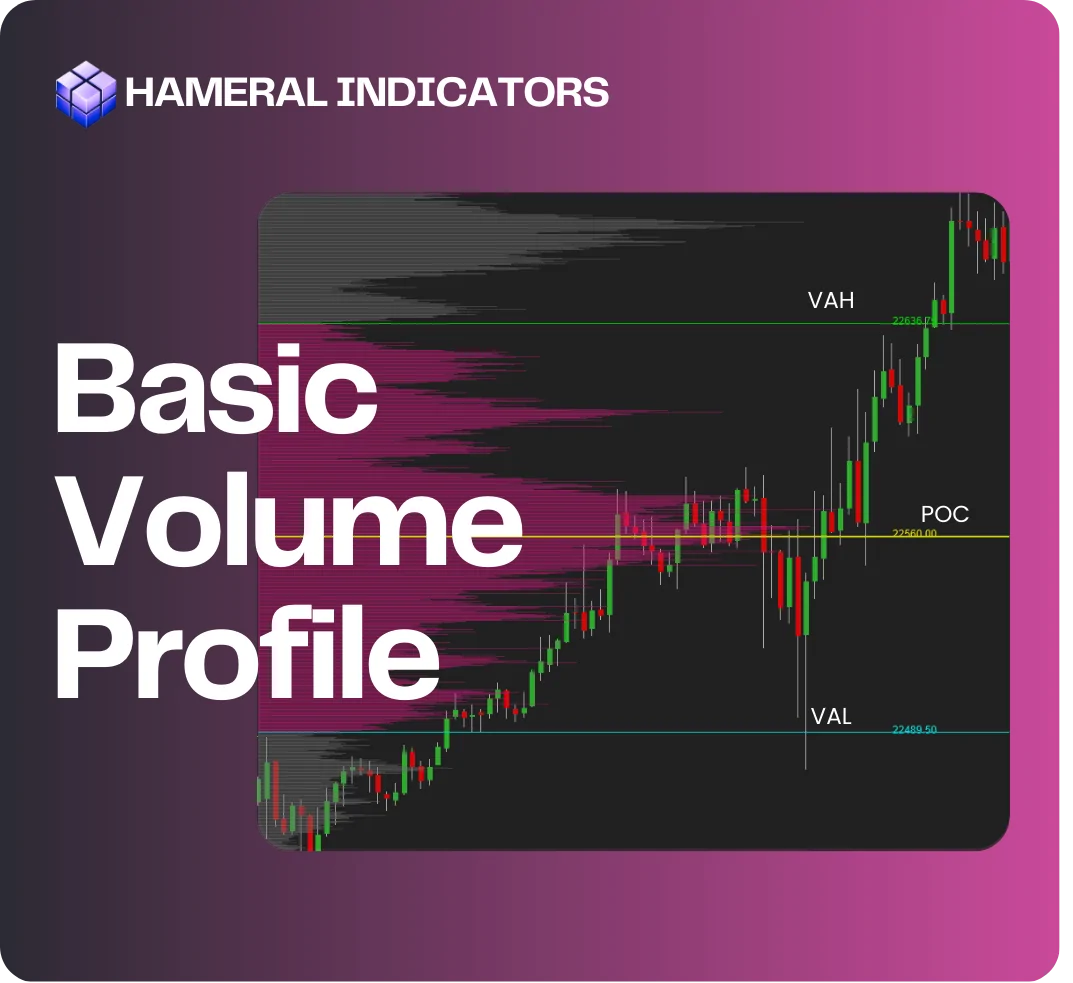
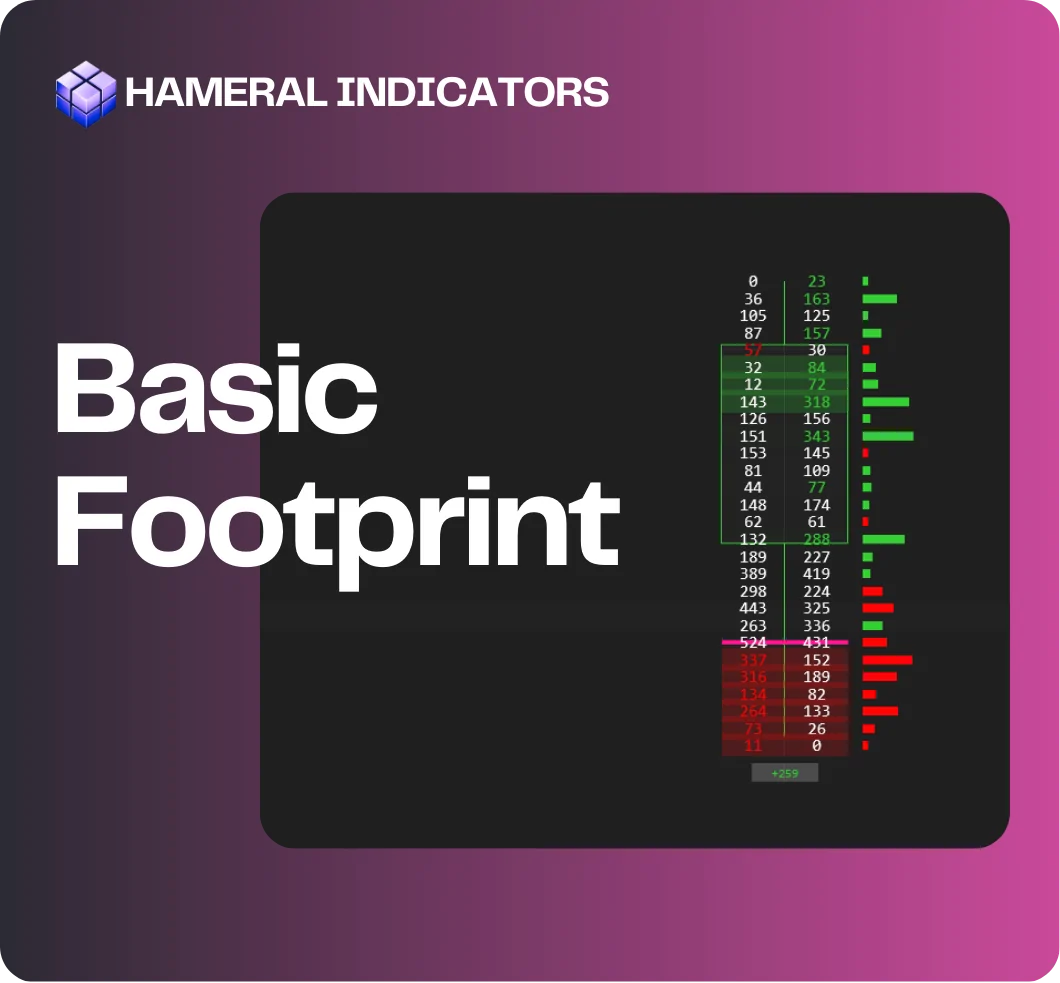

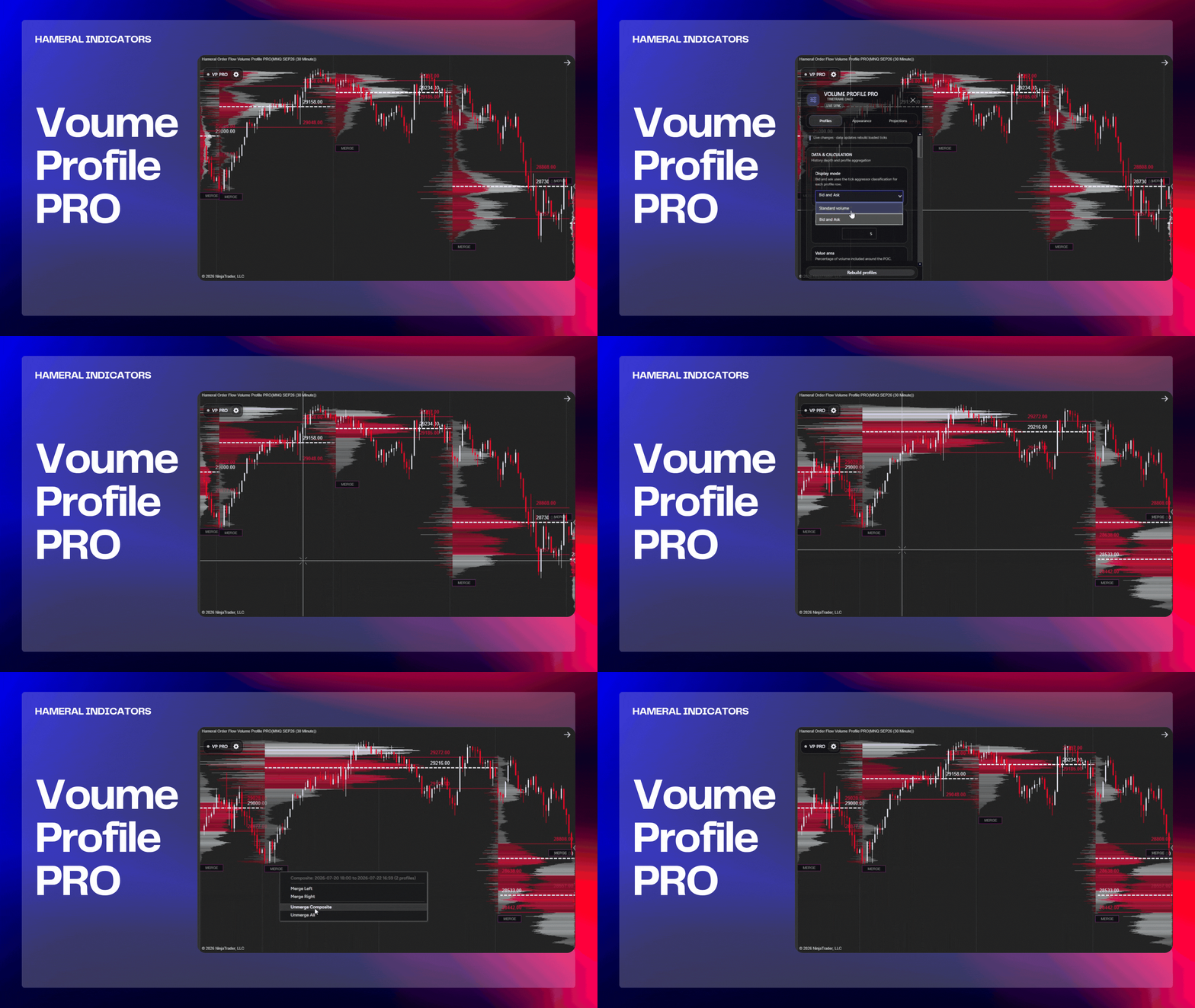

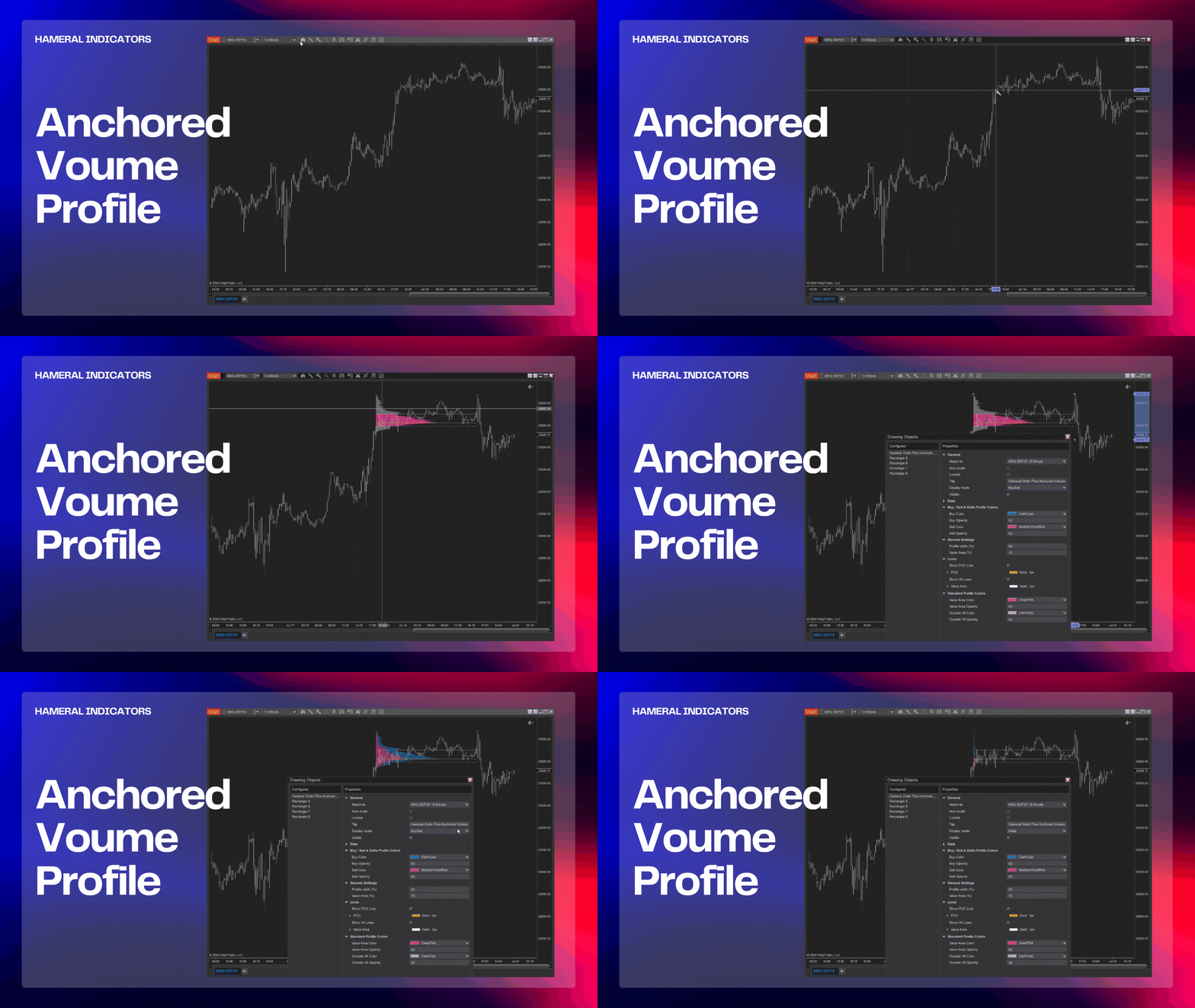
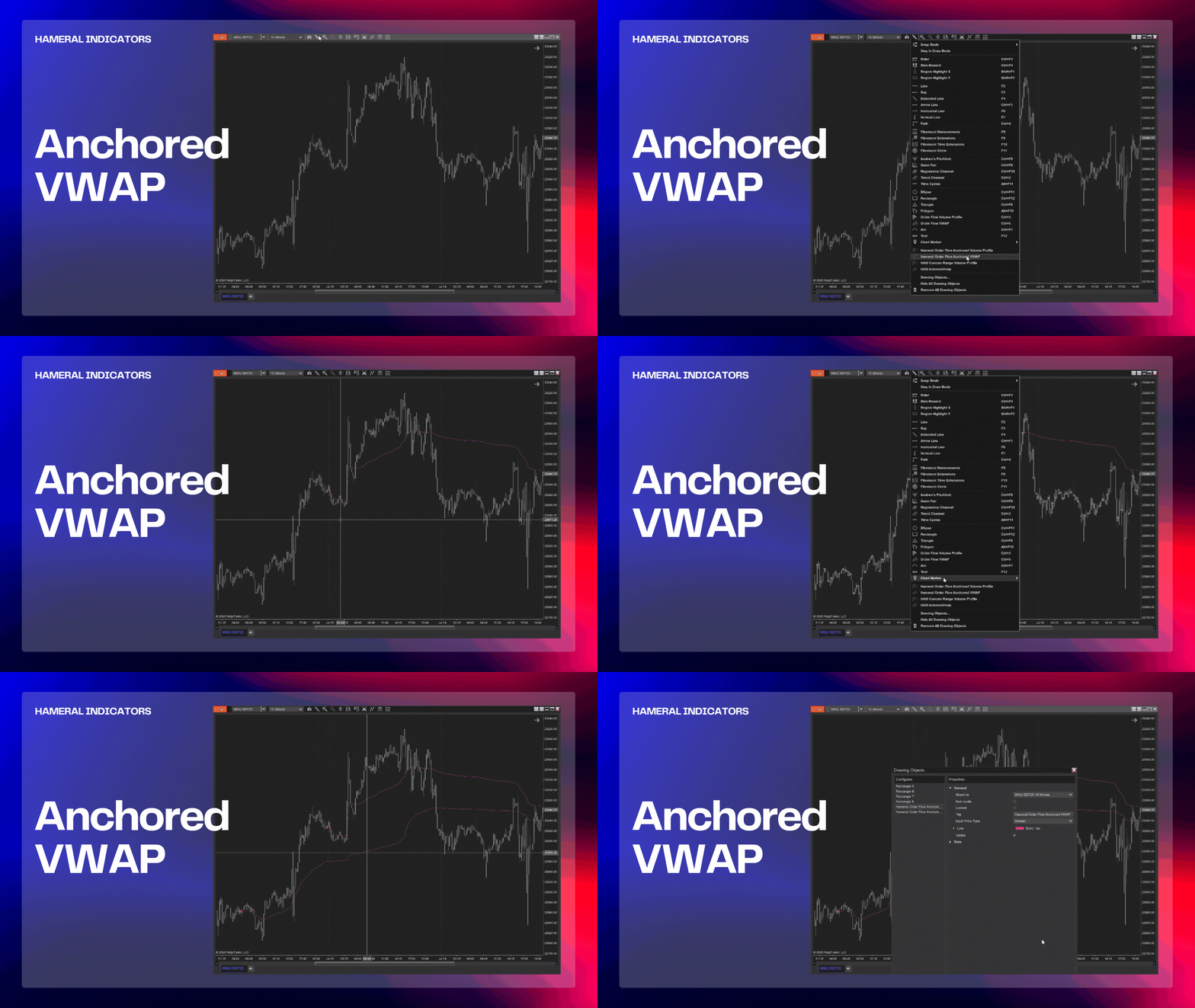
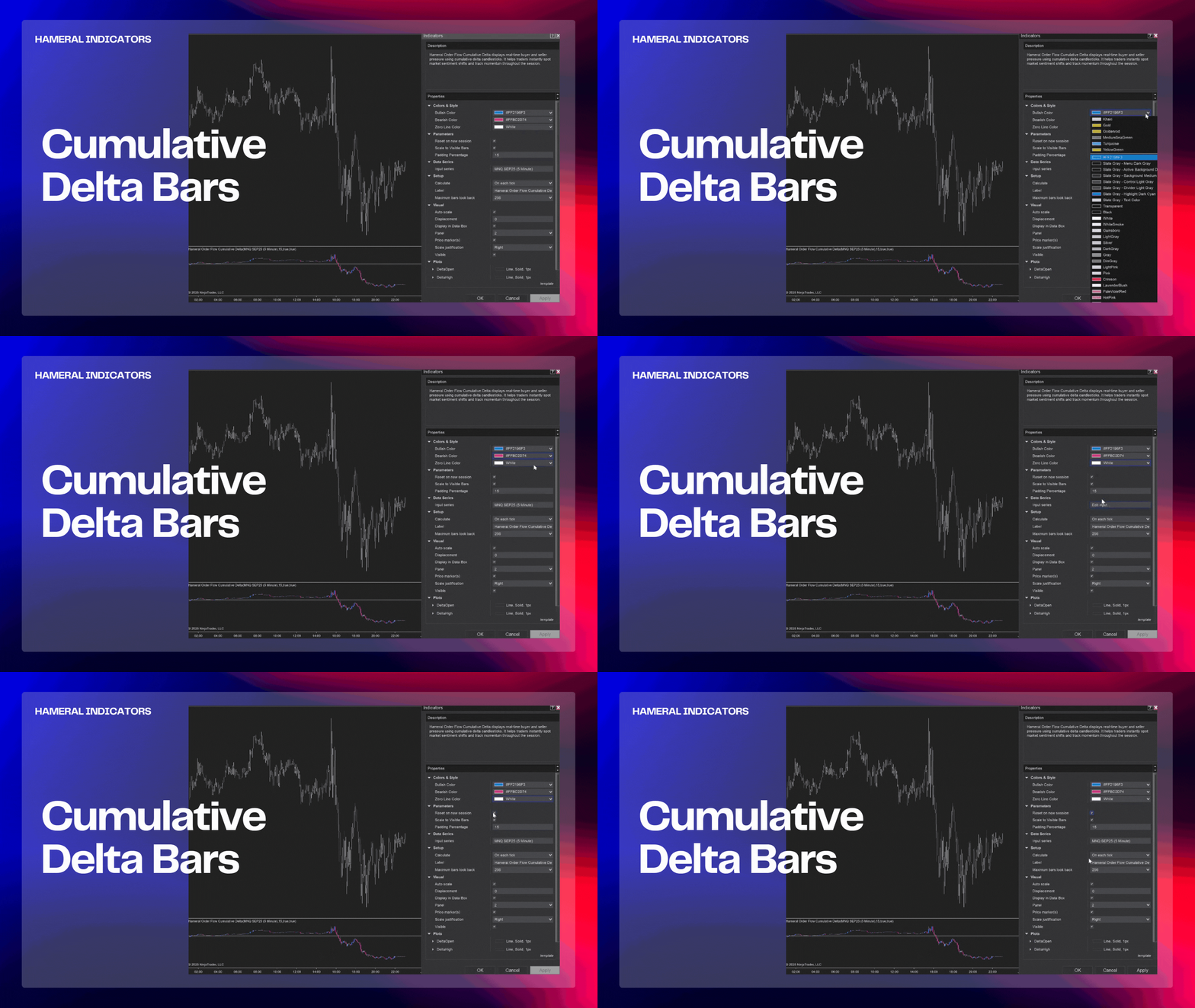
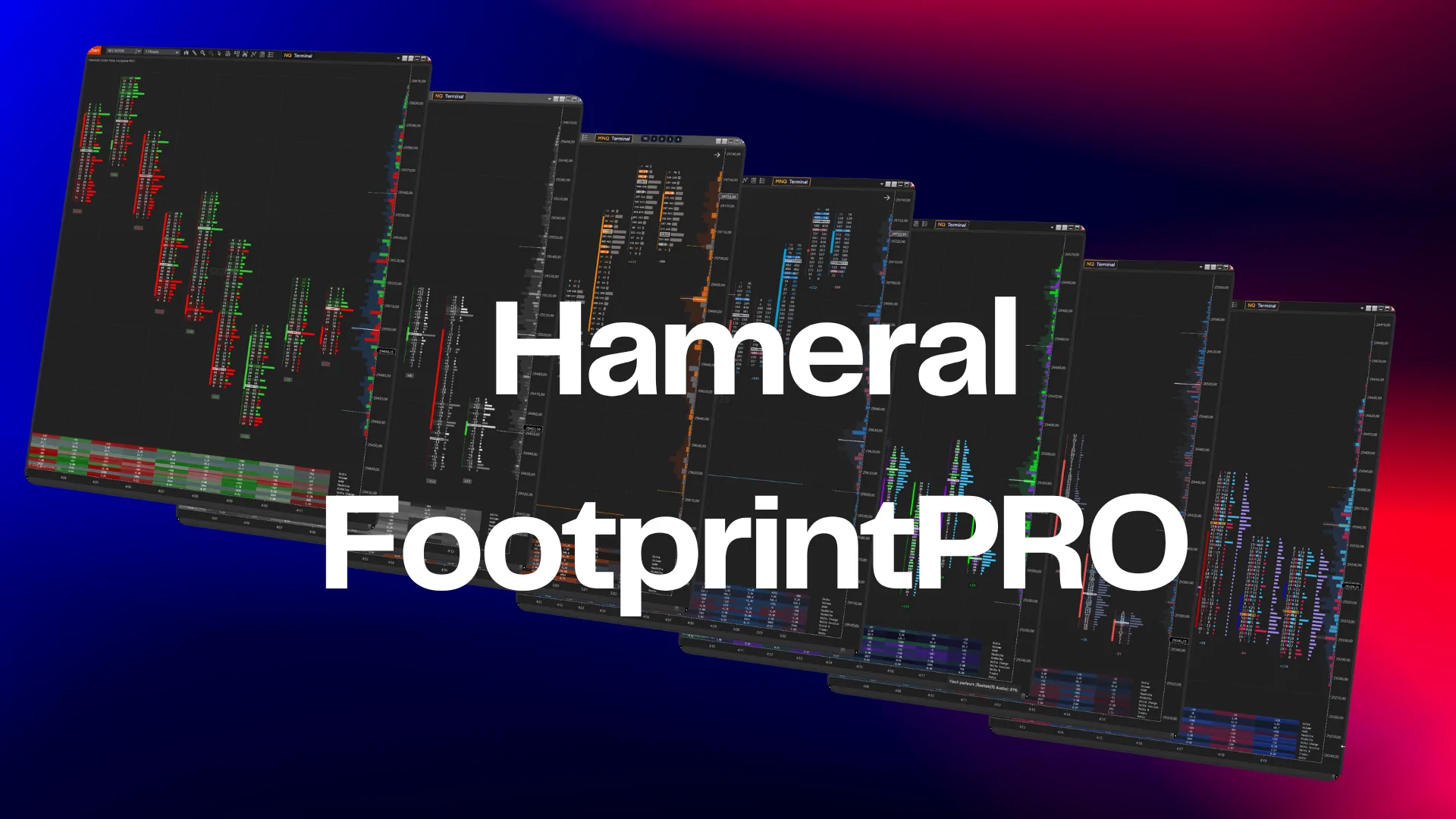
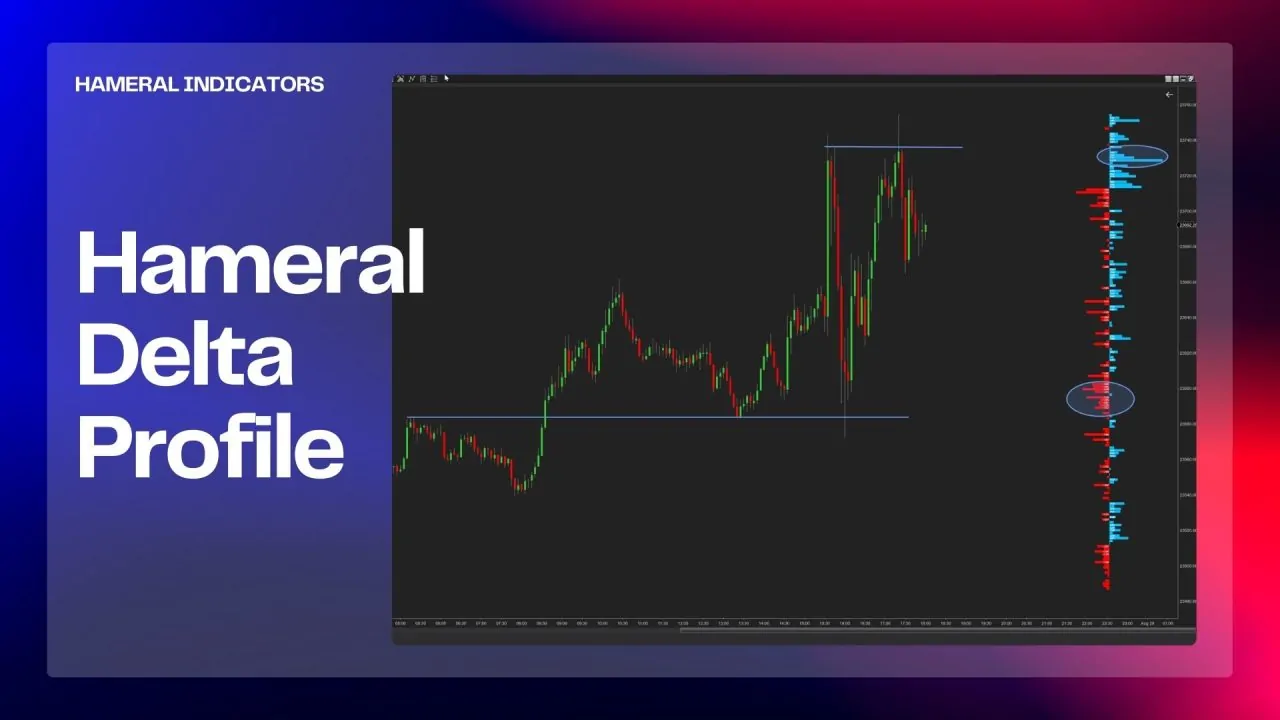
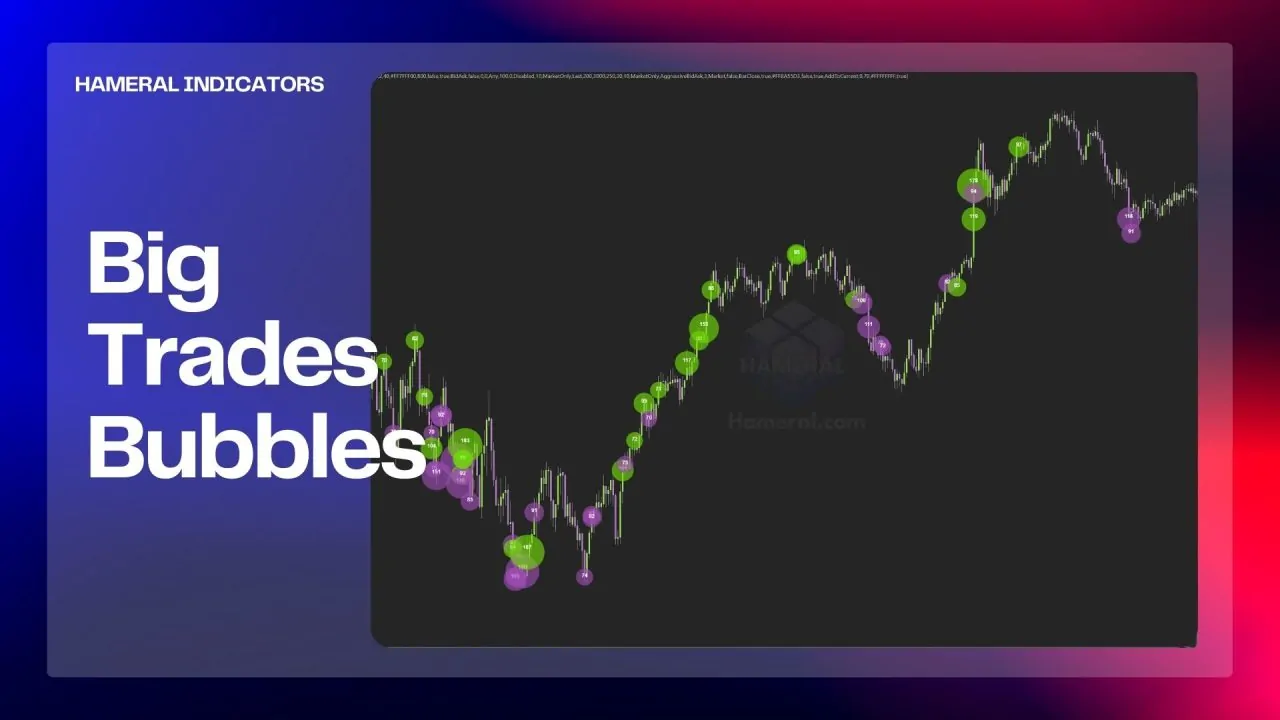
Install your tools
A short path from download to your first chart.
Import your Hameral pack
- Locate the add-on ZIP supplied with your pack. Do not unzip this file.
- In NinjaTrader 8, open Tools → Import → NinjaScript Add-On.
- Select the ZIP and complete the import.
- Restart NinjaTrader 8.
- Right-click a chart, open Indicators, and search for Hameral or the tool name.
If your pack contains separate templates or workspaces, follow its individual guide for those files.
License & free trial
Start automatically with a trial. Know what to expect after a lifetime purchase.
14 days · automatic
Your trial starts automatically after installation. You do not need to request a trial license manually.
Install → trial starts → set up your chartManually generated
After purchase, your lifetime license is generated manually. It generally takes a few hours, but please allow 24–28 hours.
Purchase → manual processing → license readyAlready purchased?
Your lifetime license is not generated instantly at checkout. If you are still within the processing window, please allow time for it to be prepared.
If more than 28 hours have passed, contact support with your order number, purchase email, and tool or pack name so we can check the status.
Set up your first chart
Find your tool and get familiar with its settings.
Add an indicator
- Open your NinjaTrader chart.
- Right-click the chart and select Indicators.
- Find your Hameral indicator and add it to the chart.
- Open the tool’s guide for its specific chart settings and examples.
Open Footprint PRO setup ↗ · Open Volume Profile PRO guide ↗
Troubleshooting & support
Answers to common installation, license, and chart questions.
Trial & licenses
How do I start the 14-day free trial?
Your 14-day trial starts automatically after installation. You do not need to request a trial license manually. Install the tool and follow its chart setup guide.
I bought a lifetime license. Why is it not ready immediately?
Lifetime licenses are generated manually. They are generally ready within a few hours, but please allow 24–28 hours for processing. Purchasing a lifetime license does not generate it instantly.
My lifetime license is still pending. What should I do?
If you are still within the 24–28-hour processing window, please allow time for manual generation. If that time has passed, contact Hameral support with your order number, purchase email, and the name of the tool or pack.
Installation & updates
How do I install the indicators?
Keep the supplied add-on ZIP intact. In NinjaTrader 8, use Tools → Import → NinjaScript Add-On and select it. Restart the platform after importing, then add your tool from the chart’s Indicators window.
I imported the pack, but cannot find the indicator.
Restart NinjaTrader, right-click a chart, and open Indicators. Search for Hameral or the tool name and check that you imported the correct pack. If it is missing, check the Control Center’s Log tab for errors and include the message when contacting support.
Import fails with a NinjaScript programming error. What now?
Existing NinjaScript compile errors can block an import. Save the exact error message and contact support for help identifying it. Avoid deleting unrelated scripts or repeatedly importing the same ZIP as a fix.
How do I install an updated version?
Import the updated add-on ZIP through the same Tools → Import → NinjaScript Add-On menu. Replace the relevant files when prompted, following any instructions supplied with the release. Restart NinjaTrader afterward.
Charts & data
The chart or historical order flow data is empty. What should I check?
First check your data connection and whether ordinary price bars load for that instrument. Confirm that your provider supplies the historical tick and bid/ask information required by the tool. Available history and data types vary by provider.
Some order flow indicators require Tick Replay to be active, including Footprint PRO. Check the individual tool’s guide, then enable it where required:
- In NinjaTrader’s Control Center, open Tools → Options → Market data.
- Enable Show Tick Replay and click OK. This reveals the chart option; it does not activate Tick Replay on every chart.
- Right-click the chart and open Data Series.
- Enable Tick Replay for that chart and click OK. Allow the chart to reload.
Start with a small amount of history while testing. Tick Replay is not required for every indicator; use the setup specified in its guide.
Do I need Tick Replay for every Hameral indicator?
Follow the individual tool’s guide. Footprint PRO’s setup requires Tick Replay. To reveal the option, enable Tools → Options → Market data → Show Tick Replay, then enable it in the chart’s Data Series. Volume Profile PRO’s integrated Delta Profile does not require it.
My Footprint chart loads slowly. How can I start with a lighter setup?
Start with a clean chart and roughly 50 bars, as suggested in the Footprint PRO guide. Increase history gradually once it loads correctly. Tick Replay can be resource-intensive; avoid loading excessive history or stacking many indicators on your first test chart.
The Footprint numbers are too small or disappear when I zoom out.
Zoom in until the price-level numbers are readable. Check Show Volume Numbers, font size, and Hide Footprint on Deep Zoom Out. Use the chart’s TERMINAL button for these display settings.
Getting help
What should I include when contacting support?
Include the indicator or pack name, NinjaTrader version, instrument and chart timeframe, a screenshot, and the steps that reproduce the problem. Copy the exact message from Control Center → Log. For a license issue, also include your order number and purchase email.
Find answers to common setup questions, or get help from our team.