
💡 PRO LEVELS
Hameral PRO Levels for NinjaTrader8
📌 Overview
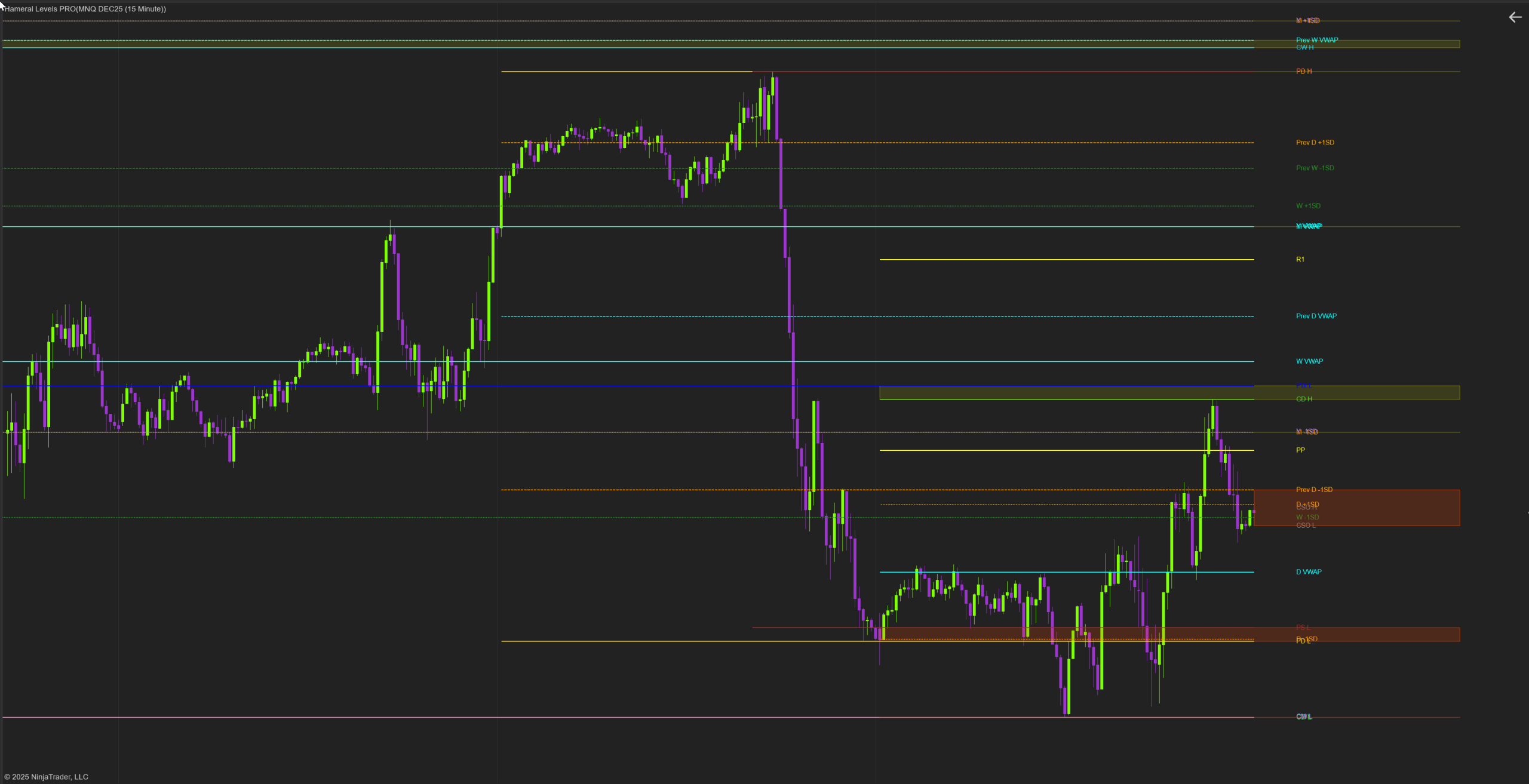
Hameral Levels PRO automatically plots previous and current session/day/week/month highs and lows, pivots, and multi-timeframe VWAP levels, then auto-builds confluence zones so you instantly see the most important support and resistance areas without manual drawing.
🔍 Footprint Key Functions
🔔 01. High / Low Levels
This module auto-plots the most important structural highs and lows across multiple timeframes.
These levels act as natural liquidity points where institutions defend price and strong reactions often occur.
What the indicator plots
- Previous Month High/Low – Major swing references for long-term trends and macro structure.
- Previous Week High/Low – Essential for weekly bias, breakouts, and failed-break setups.
- Previous Day High/Low – Classic intraday targets used by professional traders.
- Previous Session High/Low – Helps identify session-based liquidity grabs and rotations.
- Current Overnight High/Low – Key levels where overnight liquidity builds.
- Current Day High/Low – Updates in real time to show the developing intraday range.
- Current Week & Month High/Low – Gives higher-timeframe context as price evolves.
- Pivot Points
2. VWAP Levels
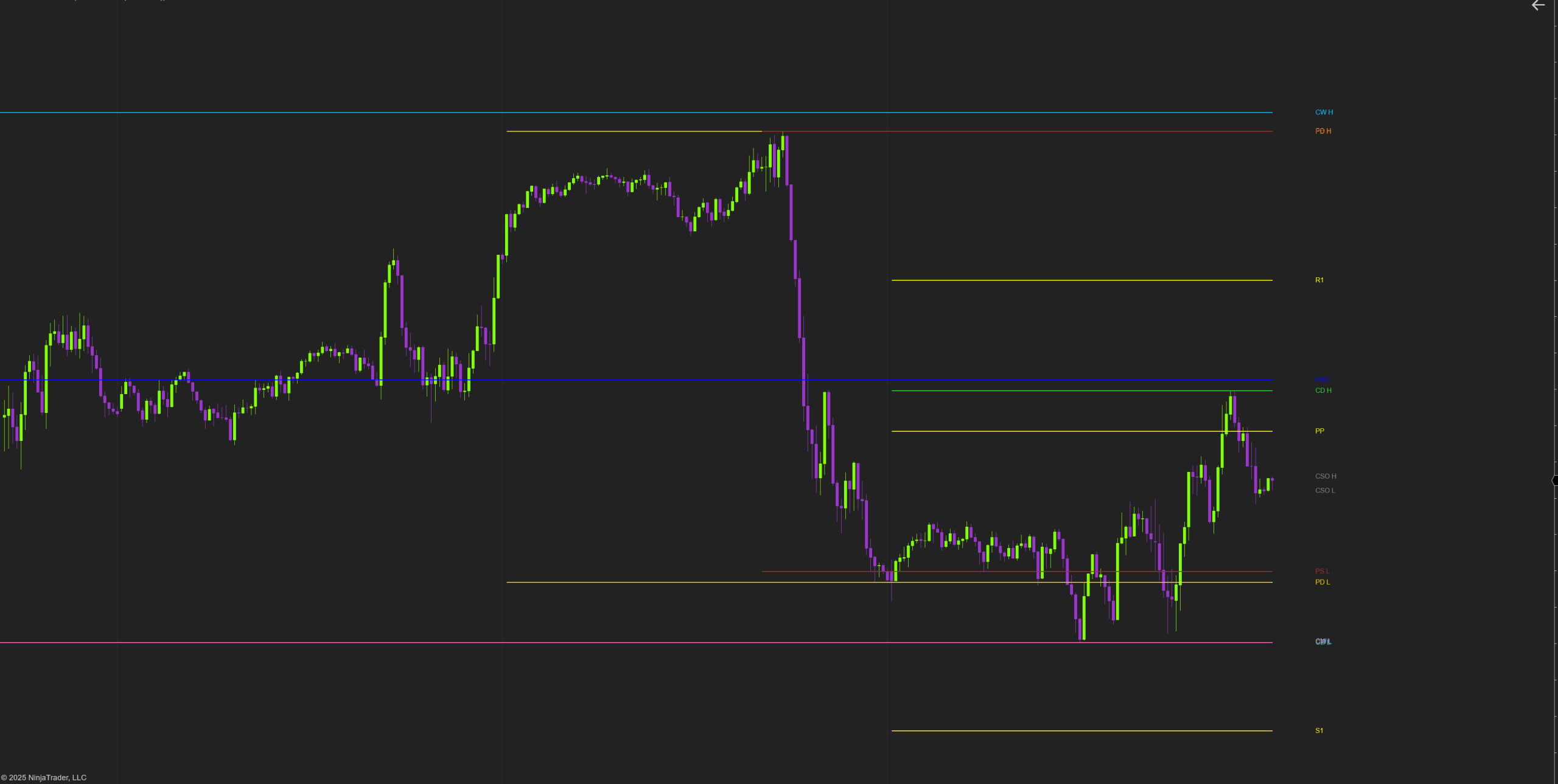
The VWAP module plots multiple VWAP-based levels that help you understand where true average traded price sits across different timeframes.
These levels act as dynamic support and resistance used by institutions, algo models, and volume-based strategies.
What the indicator plots
- Previous Session VWAP – A key benchmark for mean reversion, session trend strength, and liquidity zones.
- Current Session VWAP – Shows the developing fair value for the day as trading unfolds.
- Weekly VWAP – Helps identify trend direction and value areas on a broader timeframe.
- Monthly VWAP – Useful for swing and macro-level positioning, showing long-term average price.
Benefits for the trader
- Dynamic support and resistance that adjust automatically as volume and price evolve.
- Clear fair-value zones where price reverts, reacts, or finds balance.
- Strong confluence potential when VWAP aligns with highs, lows, or pivots.
- No manual work — all VWAP levels update in real time and remain perfectly aligned with your instrument’s session times.
3. Display & Confluence Zones
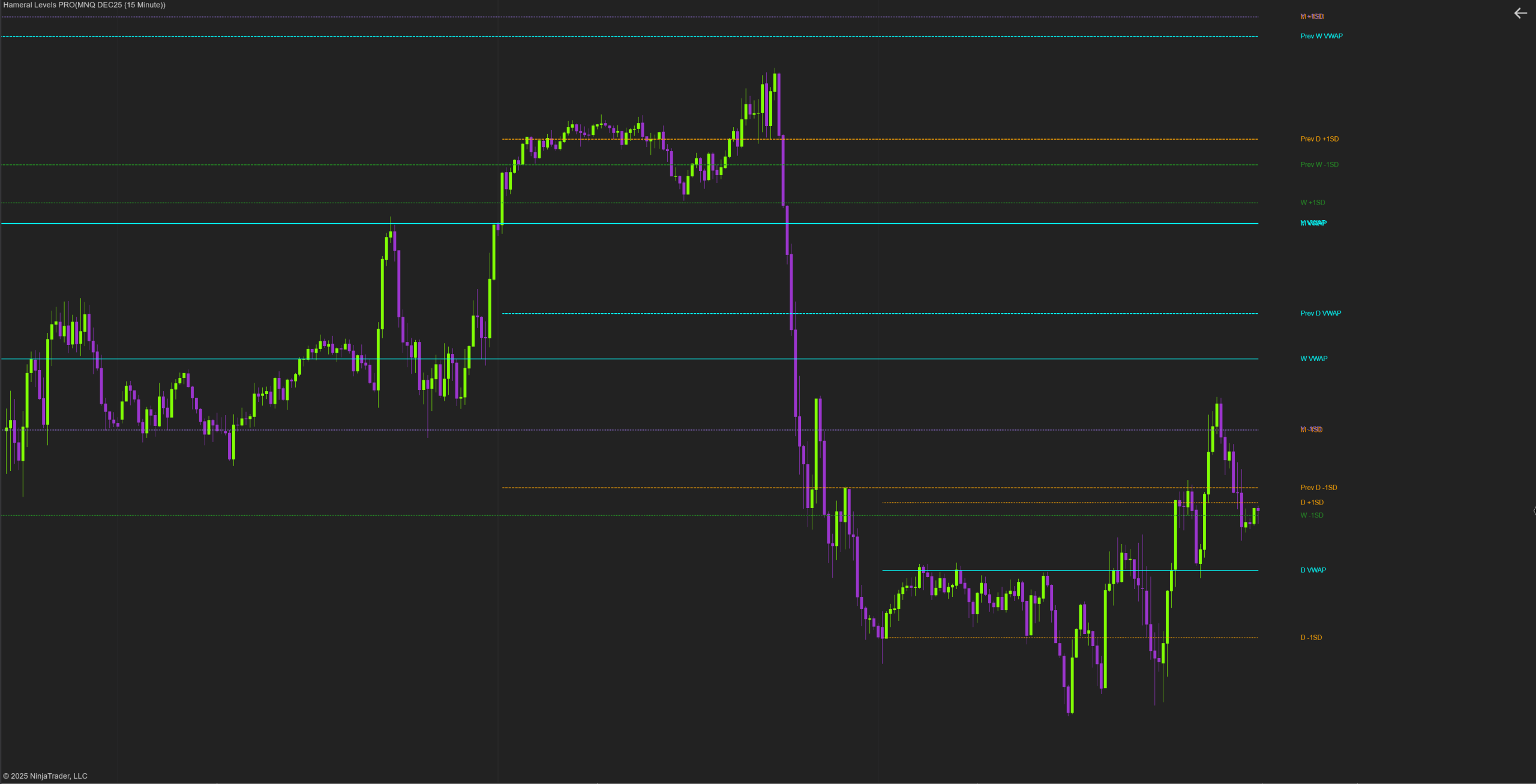
This section controls how levels appear on your chart and enables the core feature of Hameral Levels PRO:
automatic confluence zones. When multiple important levels sit close together, the indicator
merges them into a single clean zone so you instantly see where strong reactions are likely.
Why Confluence Zones Matter
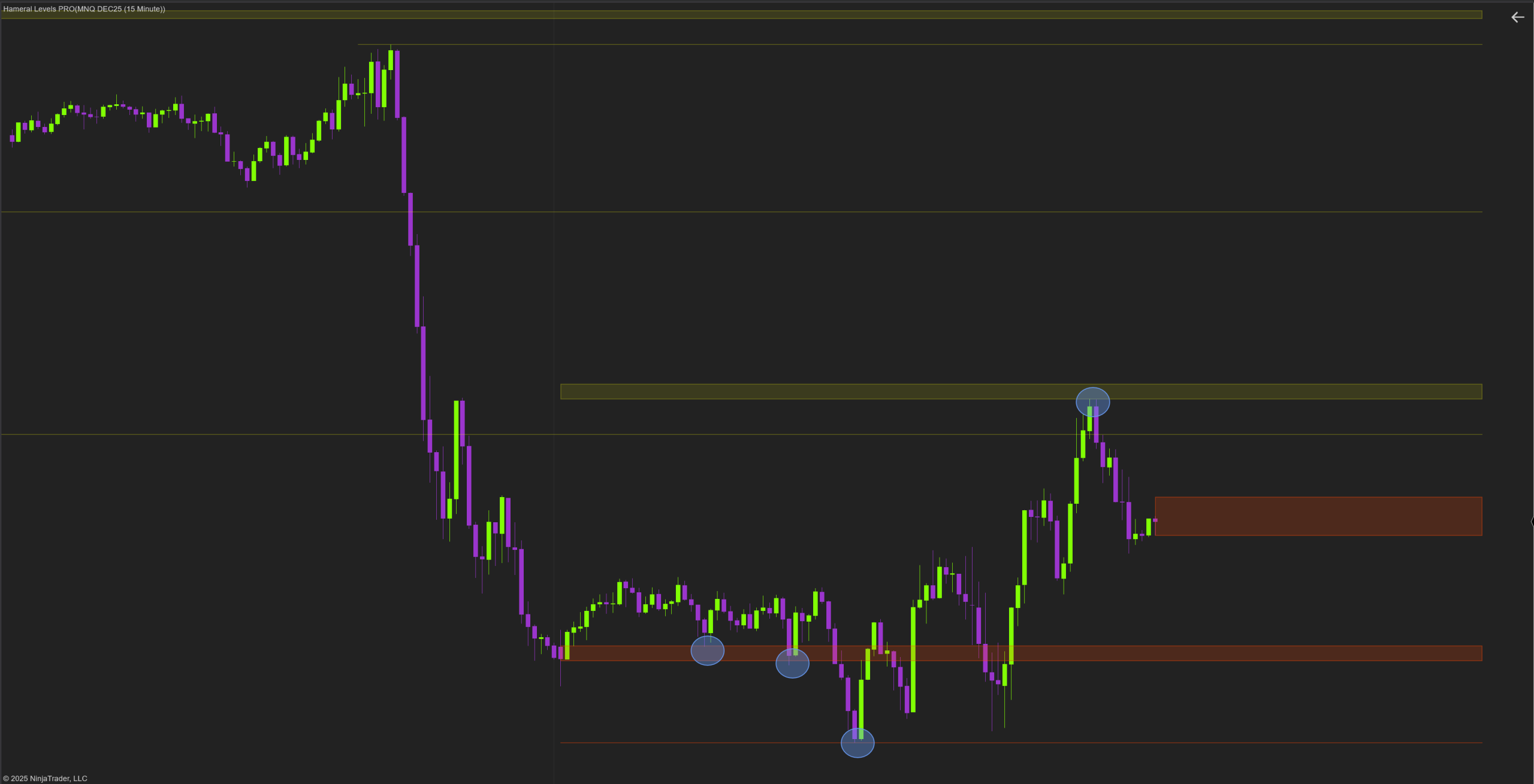
- Stronger reactions where several levels align.
- Cleaner charts by replacing stacked lines with one zone.
- Instant context for reversals, retests, and breakout points.
Display options let you toggle individual levels, adjust colors and opacity, and control how zones are shaded – making your structure clear and easy to read at a glance.
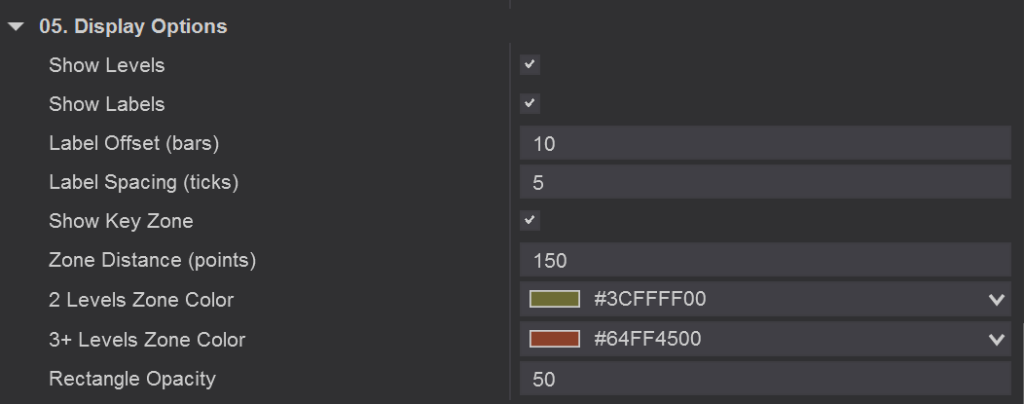
Confluence Properties
Show Levels
Turns all lines from the indicator on/off (previous highs/lows, VWAPs, pivots, etc.). If this is off, lines and labels are hidden.
Show Labels
Shows or hides the text labels at the end of each line (for example “PD H”, “W VWAP”, “PP”, etc.).
Label Offset (bars)
Controls how far to the right (into the future) the labels are printed.
- Small value → labels are close to the last bar.
- Larger value → labels are pushed further to the right.
Label Spacing (ticks)
Controls vertical distance between labels so they don’t overlap.
- Small value → labels can be closer together.
- Larger value → the script automatically staggers labels further apart in price.
Show Key Zone
Turns on/off the shaded rectangles that highlight confluence zones (areas where several important levels are very close together).
Zone Distance (points)
Defines how close levels must be (in points) to be treated as the same zone.
- Smaller value → only very tight clusters become zones.
- Larger value → more levels get grouped into the same zone, so zones become wider.
2 Levels Zone Color
3+ Levels Zone Color
Color of the rectangle when a zone has 3 or more levels overlapping within the number of points you defined in Zone Distance (points) – basically a stronger confluence area.
Rectangle Opacity
How transparent the zone rectangles are (0 = fully transparent/invisible, 100 = fully solid).
Use a lower value if they’re too strong and cover the candles; higher if you want them more pronounced.
Frequently asked questions
Top Frequently-Asked Questions About Hameral Products
Do you have a refund policy?
No refunds. All sales are final once the license key is issued. We provide lifetime updates instead.
Installation steps?
Download the zip. Go to Tools -> Import -> NinjaScript Add-On -> Choose the zip file -> Ok.
Important! After the license is ready, close the platform and reopen it.
How to Get My Indicators Fast?
✅ After payment, you can download instantly the pack.
✅ Within 24 hours (usually much faster), your license will be activated and you can use the indicators.
✅ After Installation, you will find the indicators under Indicators tab in NinjaTrader.
✏️ Anchored Volume Profile and Anchored VWAP are drawing tools - just open your Drawing Tools (pen icon) to use them.
How to add the Templates in NinjaTrader 8?
Good to know:
- Templates are different from Workspaces.
- Templates are simple setups for a specific chart.
- Workspaces are the collection of all your charts.
Steps:
1. Unzip the Templates folder.
2. Go to: Documents -> NinjaTrader 8 -> templates -> Chart
Paste the templates here.
3. Open a new chart -> Right click -> Templates -> Load -> Select the desired template.
Where do I find Hameral indicators that I ordered?
You will find your indicators in your website account.
You can also download them directly from the email.
Where do I find the indicator properties and documentation?
Go to the menu and click on "NinjaTrader Indicators" → "Documentation".
Platform & version requirements?
NinjaTrader® 8 (build 8.1.2 or later). Works on either the free or lifetime license; no 3rd-party DLLs.
Can I try it before purchase?
No. To keep the code fully secure, we do not offer trials or demo keys.
But, you can download our FREE Indicators to test the quality of our products.
How do I update the indicators?
1. Remove the old assembly
- Tools -> Remove NinjaScript Assembly
- Choose the pack you want to update -> Click "Remove"
- When finished, close the platform.
2. Import the updated pack
- Tools -> Import -> NinjaScript Addon...
- Select the ZIP file with the indicators (do NOT unzip the pack), then click Open.
How to add the Workspaces in NinjaTrader 8?
1. Unzip the Workspace files.
2. Go to: Documents -> NinjaTrader 8 -> workspaces
Paste the workspace files here.
3. In the platform, open Workspaces and select the one you want.
If it doesn’t appear, restart the platform.
Where do I find the updated indicators and files?
Every time a new version is released, the old one will be replaced in your account on our website.
Make sure you save locally the version you purchased if you don’t want to use the updated versions.