
💡HAMERAL PREMIUM TOOL
Hameral SuperDOM PRO for NinjaTrader 8
📌 Overview
Hameral SuperDOM PRO – Overview
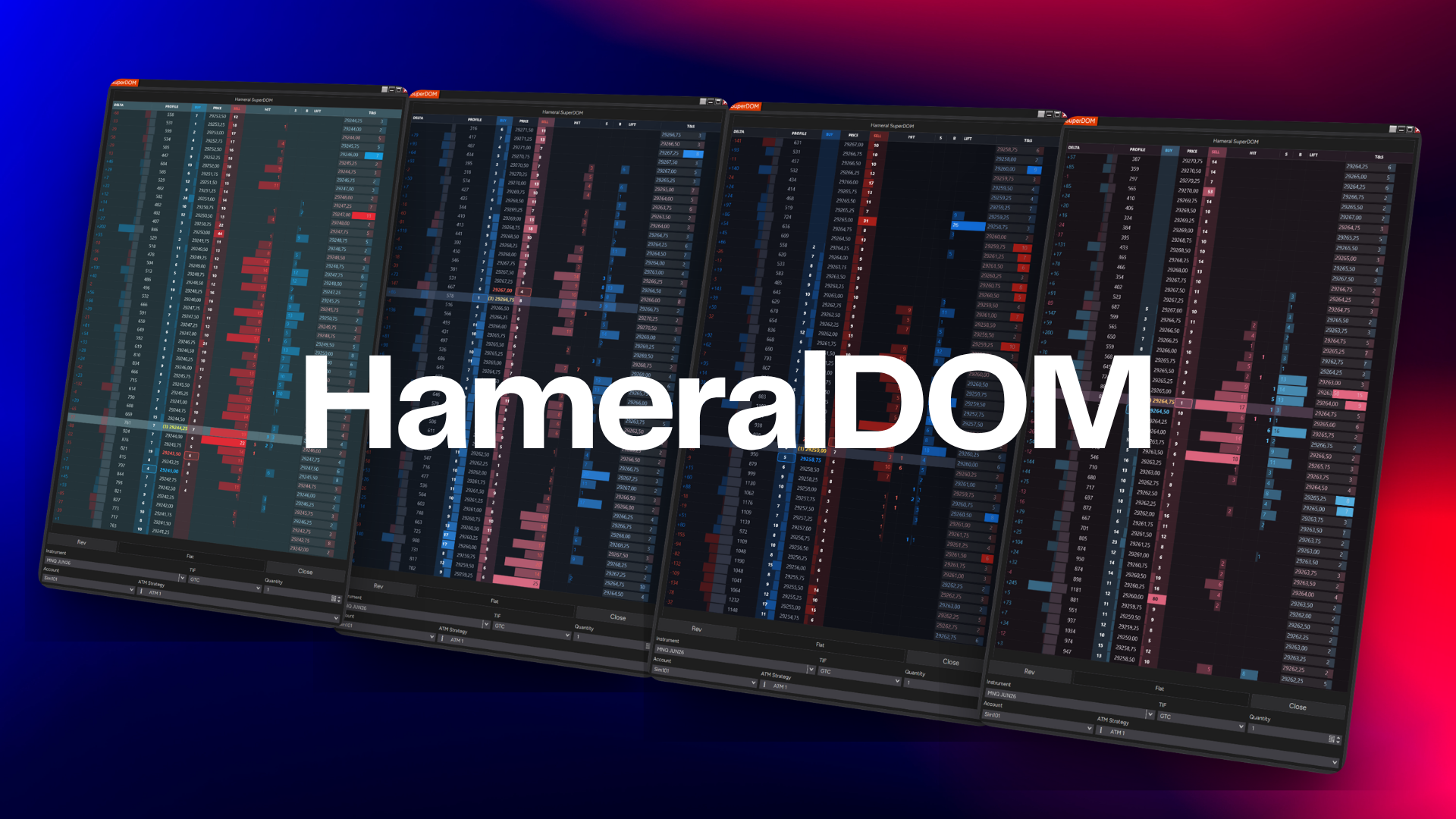
Hameral SuperDOM PRO is an advanced NinjaTrader 8 SuperDOM column that transforms the standard DOM ladder into a complete order-flow workstation.
Instead of watching separate tools for depth, recent aggression, session profile, delta, VWAP and Time & Sales, this tool brings the most important intraday order-flow information into one clean DOM layout.
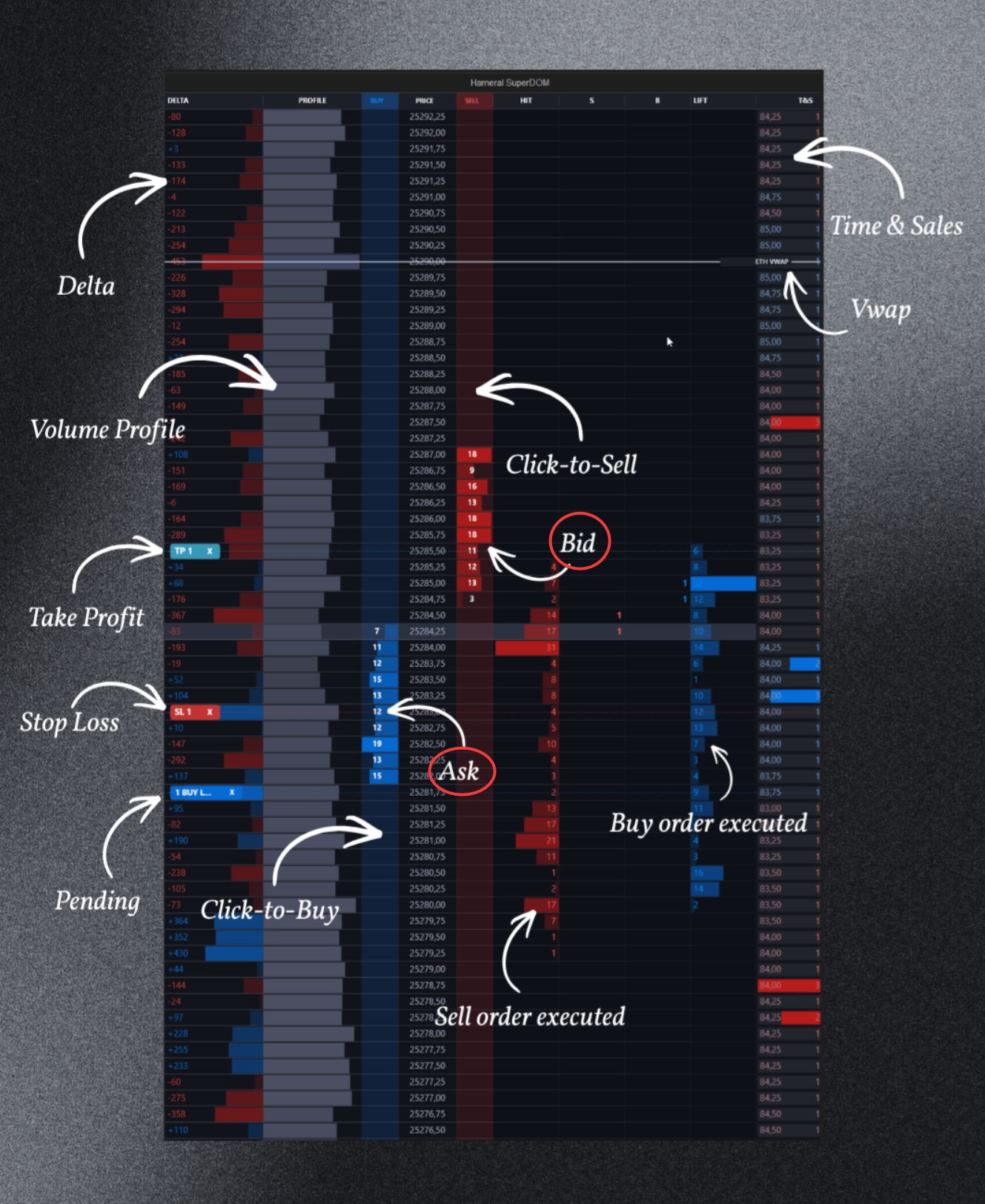
With Hameral SuperDOM PRO, you can monitor resting bid/ask liquidity, recent Hit and Lift activity, last buy/sell prints, live Time & Sales, session volume profile, per-price delta, ETH/RTH VWAP references and working order overlays directly inside the SuperDOM.
It is designed for scalpers and active intraday futures traders who want to read the market directly from the ladder, react faster to liquidity changes, and make better decisions without constantly switching between multiple charts and tools.
What Hameral SuperDOM PRO Helps You See
- Where liquidity is resting on the bid and ask
- Where orders are being added or removed
- Where buyers are lifting the ask
- Where sellers are hitting the bid
- Where larger prints appear in real time
- Where the session profile, POC and VWAP references are located
- How current price reacts around important liquidity zones
- Where your working orders, stops and targets are placed
In simple terms, Hameral SuperDOM PRO gives you a clearer view of the battle between buyers and sellers directly inside the NinjaTrader SuperDOM.
Important: This Is a SuperDOM Column, Not a Standalone Indicator
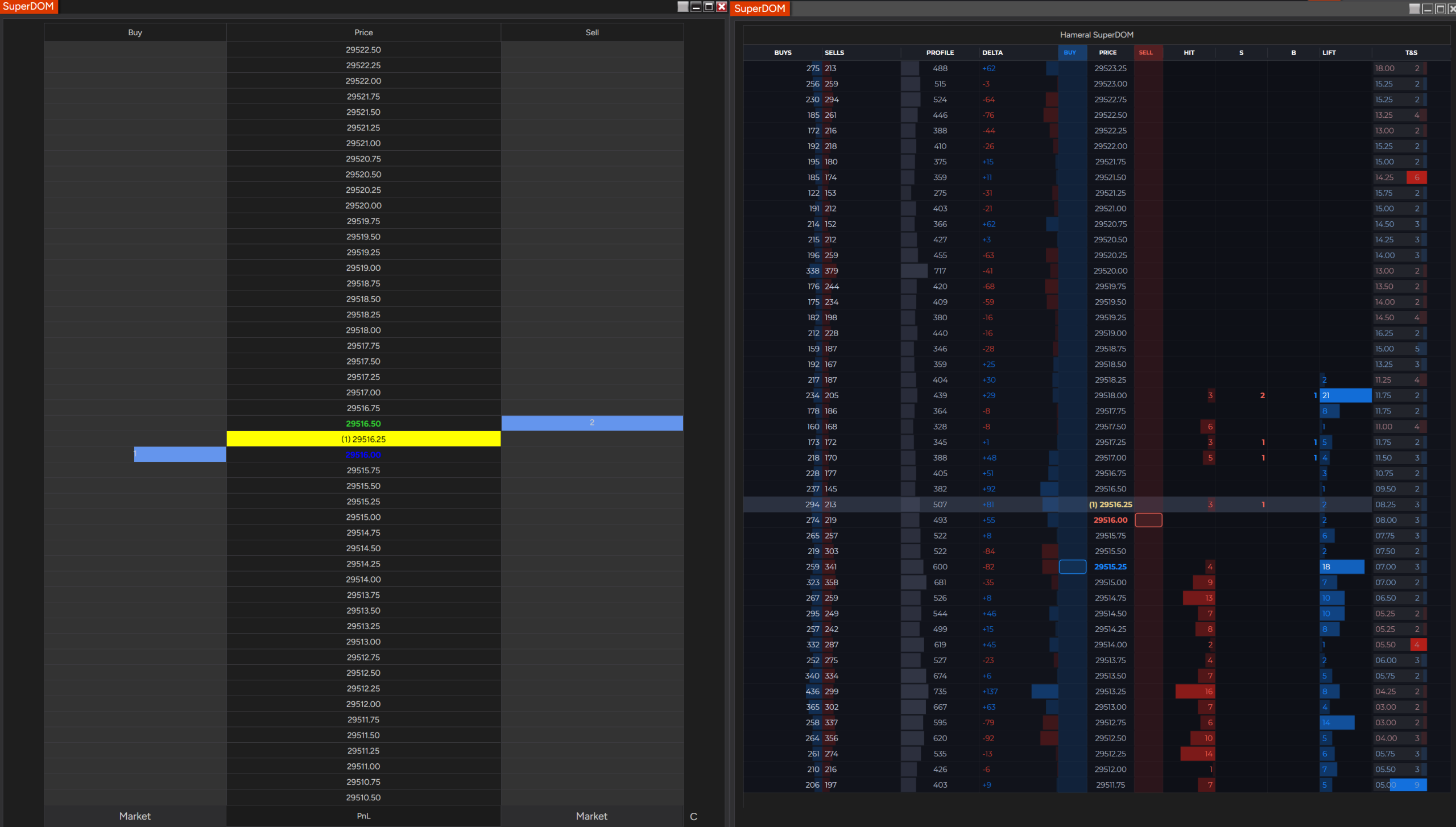
Hameral SuperDOM PRO is not a standalone chart indicator. It is a SuperDOM Column, which is how the NinjaTrader platform classifies tools that enhance the native NinjaTrader DOM.
This means you do not add it from the normal chart indicators window. Instead, you need to open the NinjaTrader SuperDOM, then add the Hameral SuperDOM PRO column from the DOM columns menu.
How to Add It
- Open NinjaTrader 8.
- Open a SuperDOM window.
- Right-click inside the SuperDOM.
- Select Columns.
- Find and add Hameral SuperDOM PRO.
- Click OK.
After adding the column, the NinjaTrader DOM will be enhanced with the Hameral style layout and additional order-flow features.
How to Modify the Settings
To change the functions, layout, colors, columns, VWAP settings, Time & Sales settings or trading options, right-click inside the SuperDOM again, go to Columns, click on Hameral SuperDOM PRO, and modify the parameters you need from the settings panel.
📌 Key Functions
1. Custom Colors for Everything
Hameral SuperDOM PRO gives you full control over the visual appearance of your DOM. Instead of being locked into a fixed style, you can customize nearly every color used in the interface to match your personal workspace, improve visibility, and create a cleaner trading environment.
This is especially useful for traders who spend hours watching the DOM and need a layout that is easier on the eyes, faster to read, and visually organized based on their own preferences.
What You Can Customize
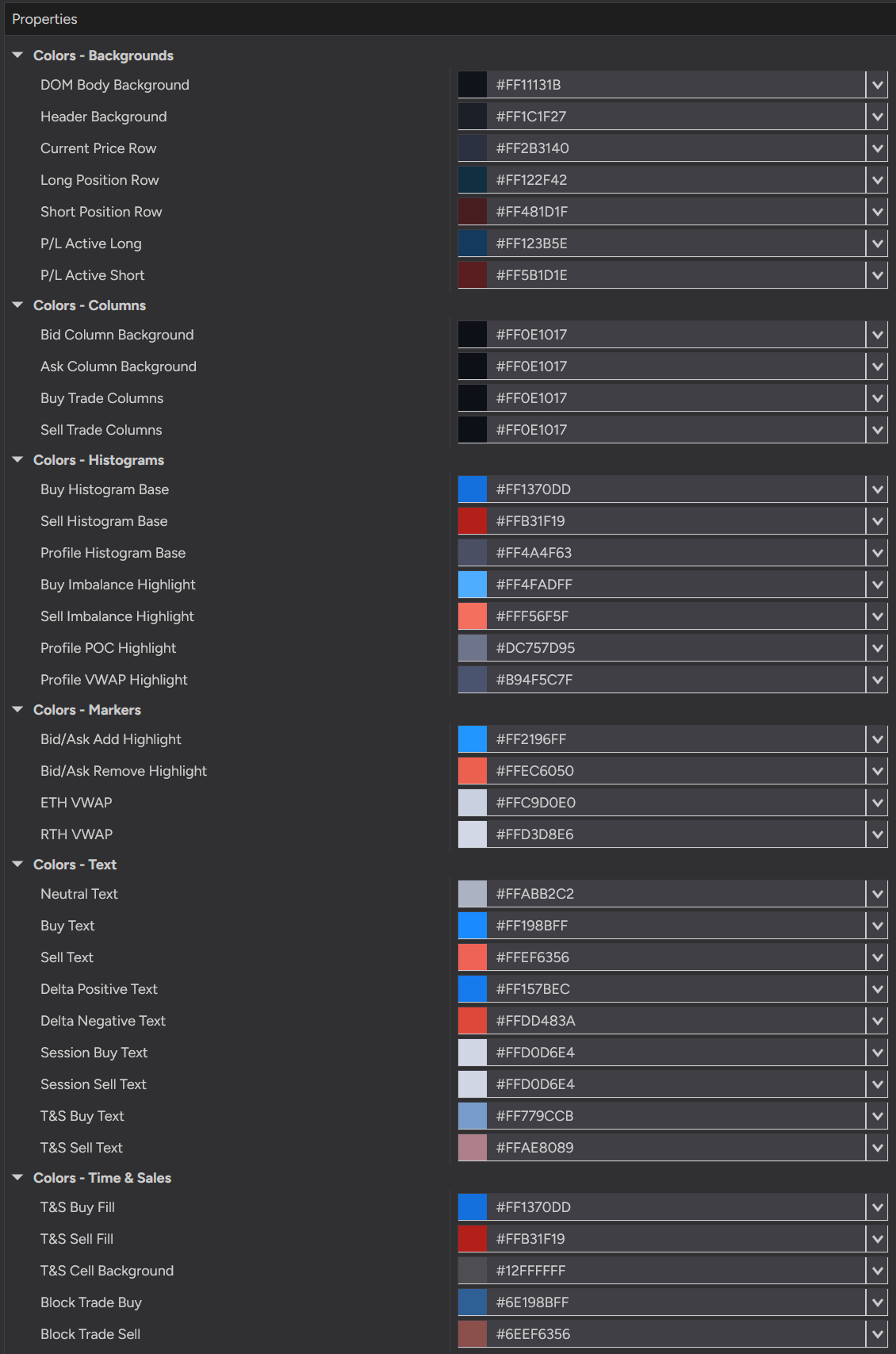
- Backgrounds – DOM body background, header background, current price row, long position row, short position row, and active P/L row colors.
- Columns – Bid column background, Ask column background, Buy trade columns, and Sell trade columns.
- Histograms – Buy histogram base, Sell histogram base, Profile histogram base, Buy imbalance highlight, Sell imbalance highlight, Profile POC highlight, and Profile VWAP highlight.
- Markers – Bid/Ask add highlight, Bid/Ask remove highlight, ETH VWAP color, and RTH VWAP color.
- Text – Neutral text, Buy text, Sell text, Delta positive text, Delta negative text, Session buy text, Session sell text, T&S buy text, and T&S sell text.
- Time & Sales – T&S buy fill, T&S sell fill, T&S cell background, Block trade buy color, and Block trade sell color.
Why It Matters
Color customization is not only about appearance. It also helps traders quickly separate buying and selling activity, identify important liquidity zones, highlight key VWAP references, and create a DOM layout that feels clear and intuitive during fast market conditions.
Whether you prefer a darker institutional-style layout, a high-contrast scalping setup, or a softer low-glare design, Hameral SuperDOM PRO gives you the flexibility to build the DOM exactly the way you want it.
2. Customizable DOM Columns
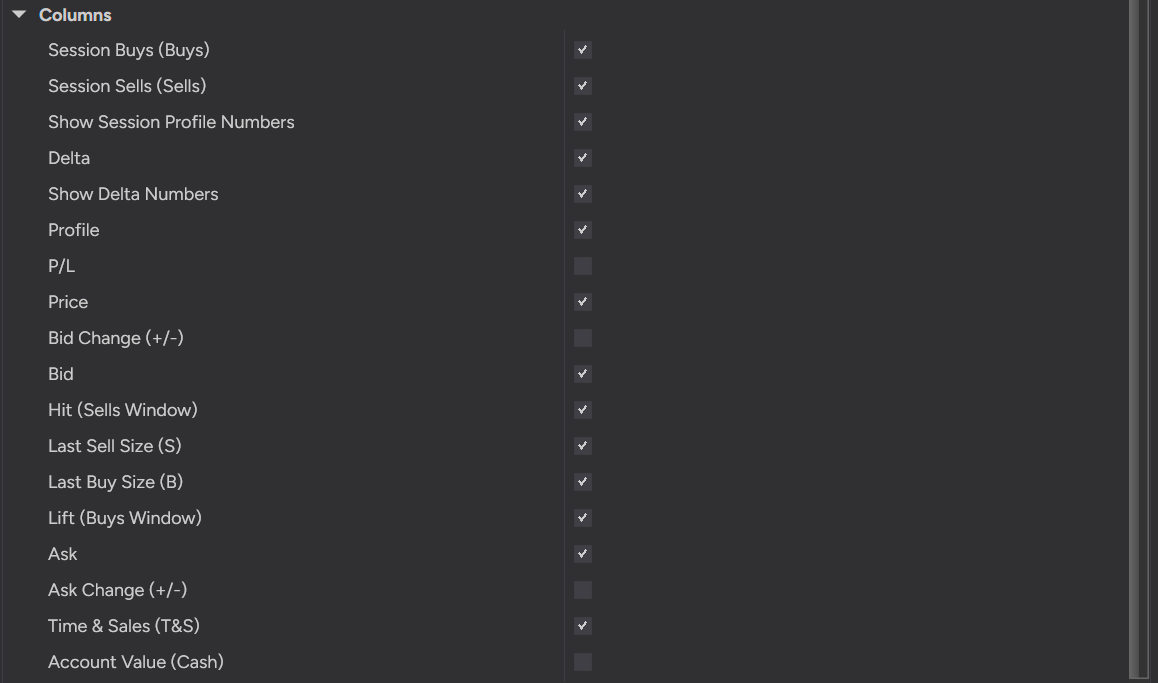
Hameral SuperDOM PRO lets you choose exactly which DOM columns you want to display. You can keep the layout clean for fast scalping or enable more data when you want deeper order-flow context.
- Session Buys (Buys) – Shows total aggressive buy volume at each price during the session.
- Session Sells (Sells) – Shows total aggressive sell volume at each price during the session.
- Show Session Profile Numbers – Displays numeric values on the session profile bars.
- Delta – Shows the difference between buy volume and sell volume at each price.
- Show Delta Numbers – Displays the actual delta values instead of only visual coloring.
- Profile – Shows the session volume profile directly inside the DOM ladder.
- P/L – Shows your current profit or loss while in a trade.
- Price – Displays the main price ladder.
- Bid Change (+/-) – Highlights recent liquidity added or removed on the bid side.
- Bid – Shows current resting bid size at each price.
- Hit (Sells Window) – Shows recent aggressive selling hitting the bid.
- Last Sell Size (S) – Shows the most recent sell trade size at each price.
- Last Buy Size (B) – Shows the most recent buy trade size at each price.
- Lift (Buys Window) – Shows recent aggressive buying lifting the ask.
- Ask – Shows current resting ask size at each price.
- Ask Change (+/-) – Highlights recent liquidity added or removed on the ask side.
- Time & Sales (T&S) – Shows live tape prints directly inside the DOM.
- Account Value (Cash) – Shows your account cash value inside the DOM view.
You can turn each column on or off depending on how much information you want to see while trading.
Performance Recommendation: Keep your DOM layout as light as possible for better performance. Real-time order flow requires a lot of calculation, especially when live orders, depth changes, Time & Sales, profile, delta and multiple columns are active at the same time. The more columns you enable, the heavier the DOM can become for your computer.
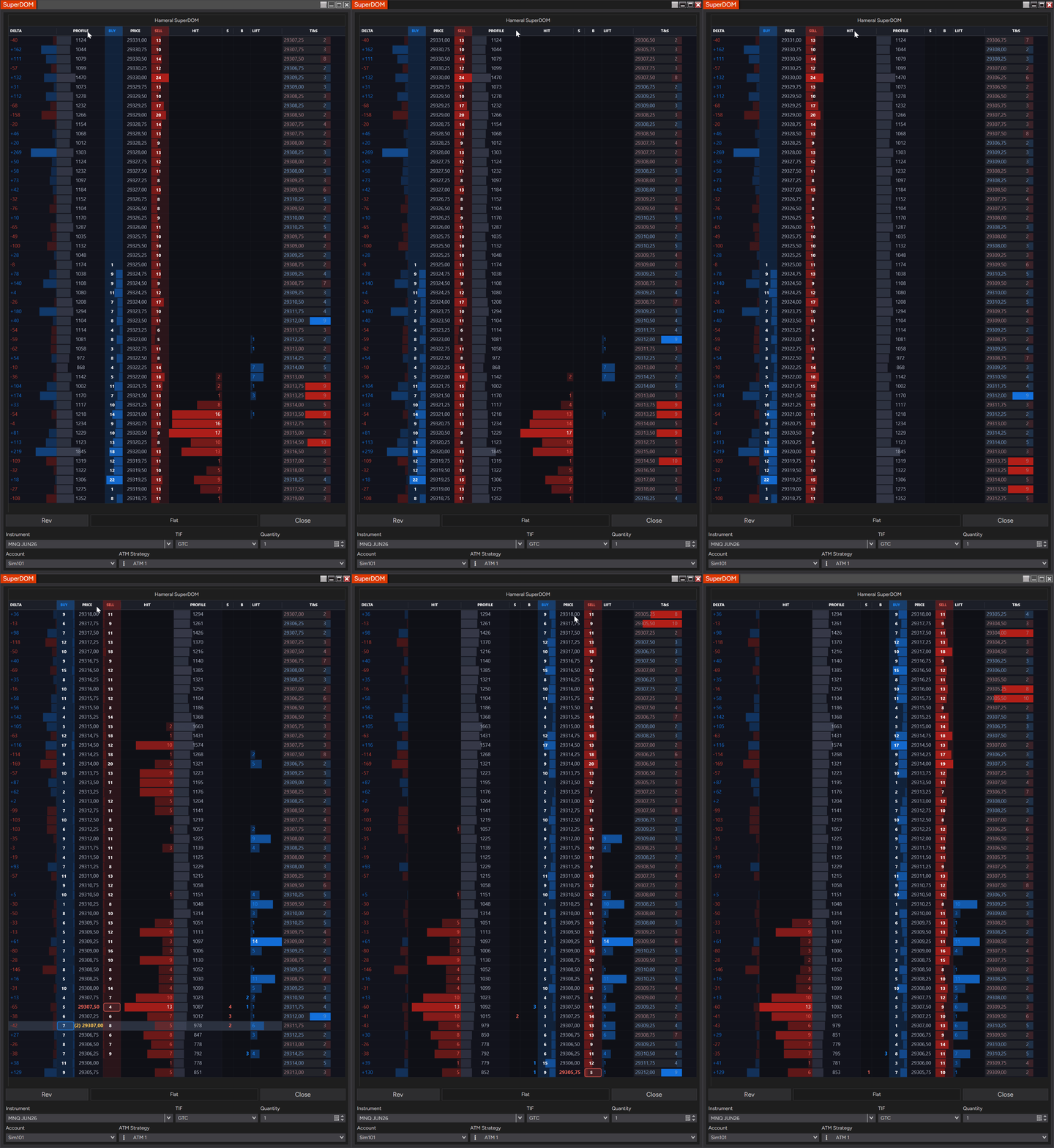
Important: You can drag and rearrange the Hameral SuperDOM PRO columns directly from the DOM header. This allows you to organize the ladder in the exact order you prefer and build a layout that matches your trading style.
3. DOM Behavior
DOM Behavior controls how the Hameral SuperDOM PRO price ladder behaves while the market is moving. This setting is important because it affects how stable or dynamic the DOM feels during live trading.
- Dynamic – The DOM updates naturally with the market. The ladder is not locked, so it behaves more like a moving live DOM.
- HoverLock – The DOM can temporarily lock/anchor the ladder while you hover or interact with it. This helps reduce accidental clicks when price is moving fast.
- Static – Keeps the ladder more stable and anchored. This is usually the best option if you want a cleaner, more controlled DOM for active order placement.
Recommendation: Start with Static mode if you use the Hameral SuperDOM PRO for active scalping or direct DOM trading. It gives you a more stable ladder and helps keep the trading area easier to control.

4. General Settings
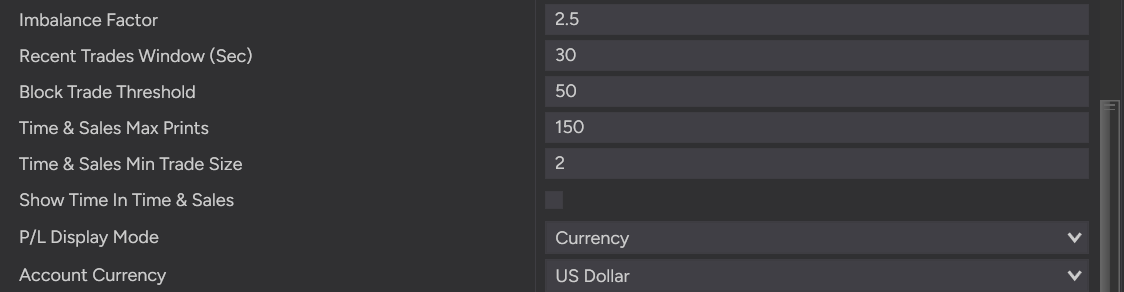
These settings control how Hameral SuperDOM PRO calculates order-flow activity, filters Time & Sales prints, and displays account-related information directly inside the DOM.
- Imbalance Factor – Controls how strong the difference between buying and selling pressure must be before an imbalance is detected. When an imbalance appears, the DOM highlights it visually using the Buy Imbalance or Sell Imbalance colors, making aggressive pressure easier to spot on the ladder.
- Recent Trades Window (Sec) – Sets how many seconds are used to calculate recent aggressive buying and selling. This affects the Hit and Lift columns. A shorter window reacts faster, while a longer window shows more accumulated recent activity.
- Block Trade Threshold – Sets the minimum trade size required to mark a trade as a large/block trade. When a print reaches this size, the DOM can highlight it using the Block Trade Buy or Block Trade Sell colors, making larger executions stand out visually.
- Time & Sales Max Prints – Controls how many recent Time & Sales prints are kept visible in the T&S column. A higher value keeps more tape history visible, while a lower value keeps the DOM cleaner.
- Time & Sales Min Trade Size – Filters out smaller prints from the Time & Sales column. Only trades equal to or larger than this value will appear, helping you focus on more relevant market activity.
- Show Time In Time & Sales – Shows or hides the timestamp next to each Time & Sales print. When enabled, you can see not only the trade size and side, but also when the print happened.
- P/L Display Mode – Chooses how the P/L column displays your current position result: in ticks or in currency. When the P/L column is enabled, the value updates directly inside the DOM.
- Account Currency – Selects the currency used when the Account Value / Cash column is enabled. This affects how the account cash value is displayed inside the DOM.
Visual Tip: Settings like Imbalance Factor, Block Trade Threshold, Time & Sales filters, Hit/Lift calculations and P/L display do not only change numbers. They also affect what becomes visually highlighted inside the DOM, helping you read aggression, large prints and trade activity faster.
5. Color Templates
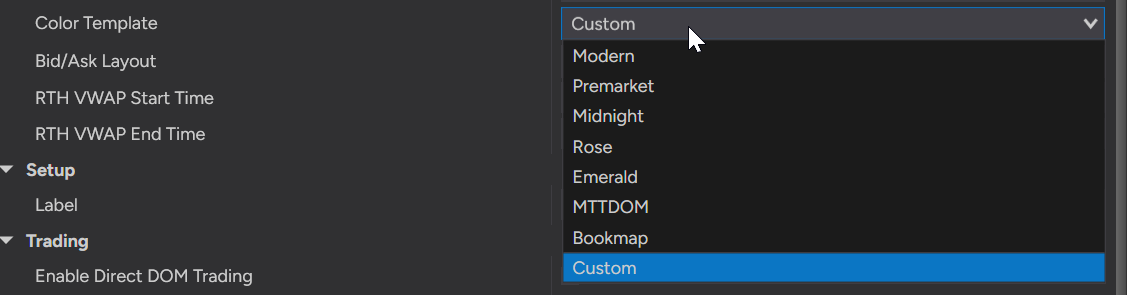
Color Template lets you quickly change the full visual style of the Hameral SuperDOM PRO without manually editing every color one by one.
Each template changes the DOM background, columns, histograms, text colors, VWAP markers, imbalance highlights, Time & Sales colors and block trade highlights.
- Modern – Clean dark layout with balanced buy/sell colors.
- Premarket – Soft professional theme designed for low-glare trading sessions.
- Midnight – Dark blue institutional-style layout with strong contrast.
- Rose – Warmer dark theme with pink/red accents.
- Emerald – Green-focused theme with softer buy/sell contrast.
- MTTDOM – DOM-style theme inspired by classic professional ladder layouts.
- Bookmap – Color palette inspired by liquidity heatmap-style visuals.
- Custom – Lets you manually control the colors yourself.
Important: Sometimes, after selecting a color template, you may need to apply the same template twice before all colors are fully updated inside the DOM. If the colors do not change immediately, select the template again and confirm the settings.
Use the preset templates for a fast setup, or choose Custom if you want to create your own personal DOM color style.
6. Bid/Ask Layout
Bid/Ask Layout controls where the Bid and Ask liquidity information is displayed inside the Hameral SuperDOM PRO.
- InsideTradeColumn – Shows the Bid and Ask information inside the main price/trade column. This creates a more compact DOM layout and keeps the ladder cleaner.
- OutsideColumns – Shows Bid and Ask as separate standalone columns, similar to a more traditional DOM layout. This gives more space to read resting liquidity on each side.
Note: This setting changes where Bid and Ask depth is displayed, not how the data is calculated. Use InsideTradeColumn for a lighter, cleaner DOM, or OutsideColumns if you prefer to see Bid and Ask liquidity in separate columns.

7. RTH VWAP Session Time
RTH VWAP Start Time and RTH VWAP End Time define the Regular Trading Hours session used to calculate the RTH VWAP line.
- RTH VWAP Start Time – Sets the time when the RTH VWAP calculation begins. Default: 09:30.
- RTH VWAP End Time – Sets the time when the RTH VWAP calculation stops. Default: 16:00.
The RTH VWAP line displayed on the DOM will be calculated only from the price and volume data inside this selected time window.

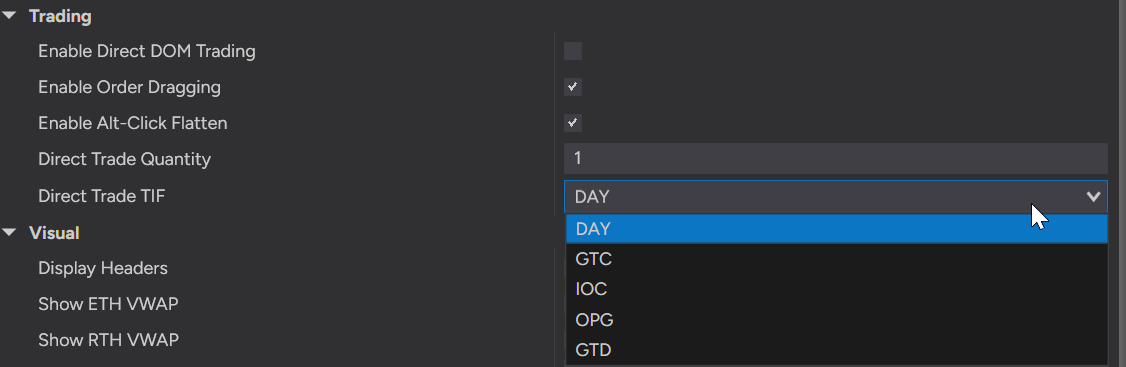
8. Trading Settings
These settings control the direct trading actions available from the Hameral SuperDOM PRO ladder.
- Enable Direct DOM Trading – Allows you to place orders directly from the Hameral DOM trading lanes.
- Enable Order Dragging – Allows you to drag working orders to another price level directly on the DOM.
- Enable Alt-Click Flatten – Allows you to flatten the current instrument and cancel working orders using Alt + Left Click.
- Direct Trade Quantity – Sets the fallback order quantity used for direct DOM trading.
- Direct Trade TIF – Sets the time-in-force used for direct orders, such as DAY, GTC, IOC, OPG or GTD.
Important: These options can affect live order placement and order management. Test all trading actions in simulation before using them on a live account.
9. Visual Settings
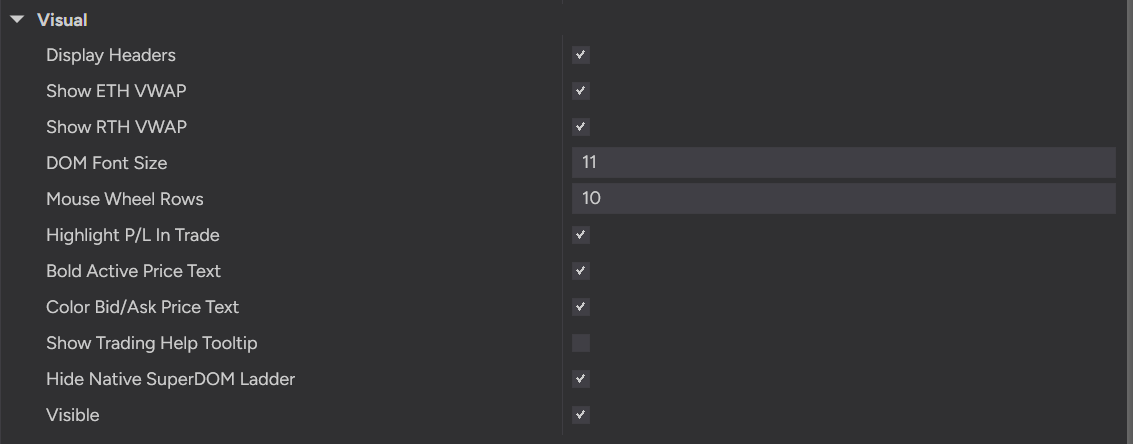
These settings control how the Hameral SuperDOM PRO looks and how the ladder is displayed while trading.
- Display Headers – Shows or hides the column names at the top of the DOM.
- Show ETH VWAP – Displays the ETH VWAP line directly on the DOM ladder.
- Show RTH VWAP – Displays the RTH VWAP line based on the selected RTH session time.
- DOM Font Size – Changes the text size used inside the DOM columns.
- Mouse Wheel Rows – Controls how many price rows the DOM moves when you scroll with the mouse wheel.
- Highlight P/L In Trade – Highlights the P/L area when you are currently in a position.
- Bold Active Price Text – Makes the current/active price easier to see by showing it in bold text.
- Color Bid/Ask Price Text – Colors the price text based on bid/ask market side for faster visual reading.
- Show Trading Help Tooltip – Shows a help tooltip with the main direct trading actions.
- Hide Native SuperDOM Ladder – Hides the standard NinjaTrader DOM ladder so the Hameral SuperDOM layout becomes the main DOM view.
- Visible – Shows or hides the Hameral SuperDOM PRO column.
Tip: If you want the full Hameral-style DOM experience, keep Hide Native SuperDOM Ladder enabled. If you want to compare it with the classic NinjaTrader DOM ladder, disable this option.
Performance Recommendations
Hameral SuperDOM PRO processes live DOM data, market depth, Time & Sales, profile, delta, VWAP, working orders and visual highlights in real time. For the best experience, keep your setup clean and enable only the information you really use.
- Keep only the columns you need visible. The more columns you enable, the more calculations and rendering the DOM has to process.
- Avoid using all functions at the same time. Profile, Delta, Session Buys/Sells, Bid/Ask depth, Bid/Ask Change, Hit/Lift, Time & Sales and VWAP all add extra real-time processing.
- Use Time & Sales filters. Set Time & Sales Min Trade Size to 2–3 contracts or higher so the DOM shows more relevant prints and does not get overloaded with every small trade.
- Limit the number of Time & Sales prints. A smaller Time & Sales Max Prints value keeps the tape cleaner and lighter.
- Disable Time & Sales timestamps if you do not need them. Showing the time for every print adds more visual information to render.
- Use Bid Change and Ask Change only when needed. These columns track liquidity being added or removed, so they are useful, but they also require extra depth-change processing.
- Use Session Buys and Session Sells only when you need accumulated session data. If you already use Delta and Profile, you may not need all session volume columns enabled at the same time.
- Disable VWAP lines if they are not part of your strategy. ETH VWAP and RTH VWAP are useful references, but if you do not use them, turning them off can keep the DOM lighter.
- Keep the layout compact. Using InsideTradeColumn for Bid/Ask layout can help keep the DOM cleaner than displaying separate outside Bid and Ask columns.
- Use Direct DOM Trading only if you actually trade from the DOM. If you only use the tool for reading order flow, you can disable direct trading features.
- Disable Order Dragging if you do not move orders from the ladder. This keeps the DOM interaction simpler and reduces accidental actions.
- Start simple, then add features one by one. First build a light layout, test it, then enable extra columns only if they give you useful trading information.
Recommended Light Setup: For many traders, a clean starting layout can be Price + Bid/Ask + Hit + Lift + Last Buy/Sell Size + Time & Sales filtered from 2–3 contracts up. Add Profile, Delta, VWAP or Bid/Ask Change only when you need that extra context.
Important: Real-time order flow can become heavy during fast markets, especially when many columns and visual calculations are active at the same time. If your platform feels slow, reduce the number of visible columns, increase the Time & Sales minimum trade size, and disable the features you do not actively use.
Demo Trading Warning
Practice first in simulation. Before using Hameral SuperDOM PRO on a live account, spend enough time testing it on a demo/simulation account. Make sure you understand how the columns, order placement, order dragging, flatten action, Time & Sales, VWAP and visual highlights behave in real market conditions.
The tool is designed to help you read the DOM and manage your trading workflow, but every live trading decision, order placement, mistake, platform setting, execution result or account risk remains your own responsibility. Use it carefully, test your setup, and never trade live until you are fully comfortable with how it works.
⚠️ Data Displayed With Level 1 and Level 2 Market Data
Hameral SuperDOM PRO uses both Level 1 and Level 2 market data, depending on the features you enable.
- Level 1 Data – Used for live price updates, last traded price, Time & Sales prints, last buy/sell size, Hit/Lift activity, Delta, Profile and VWAP calculations.
- Level 2 Data – Used for DOM depth information such as Bid size, Ask size, resting liquidity, Bid Change and Ask Change highlights.
Important: If your data feed does not include Level 2 market depth, the DOM can still show Level 1-based information, but depth-related columns such as Bid, Ask, Bid Change and Ask Change may not display the full liquidity picture.
Hameral SuperDOM PRO Shortcuts
These shortcuts help you interact faster with the Hameral SuperDOM PRO directly from the DOM ladder.
- Left Click on Buy/Sell Lane – Places an order at the selected price level.
- Middle Click on Buy/Sell Lane – Places a stop-market order at the selected price level.
- Ctrl + Left Click – Cancels working orders at that price/side.
- Alt + Left Click – Flattens the current instrument and cancels working orders.
- Drag Working Order Badge – Moves a working order to another price level.
- Click X on Order Badge – Cancels that specific working order.
- Click – / + on Order Badge – Decreases or increases the quantity of a single working order.
- Ctrl + Space – Centers the DOM back on the last traded price.
- Mouse Wheel – Scrolls the DOM price ladder up or down.
- Drag Column Header – Rearranges the DOM columns in your preferred order.
- Drag Column Border – Resizes the width of the columns.
Tip: You can enable Show Trading Help Tooltip in the Visual settings to display the main trading shortcuts directly inside the DOM.
Important: Some shortcuts can place, move, cancel or flatten live orders. Practice them first in simulation until you are fully comfortable with the DOM behavior.