
💡 FREE INDICATORS FOR NINJATRADER 8
Delta Heatmap Candles Indicator for NinjaTrader8
📌 Overview
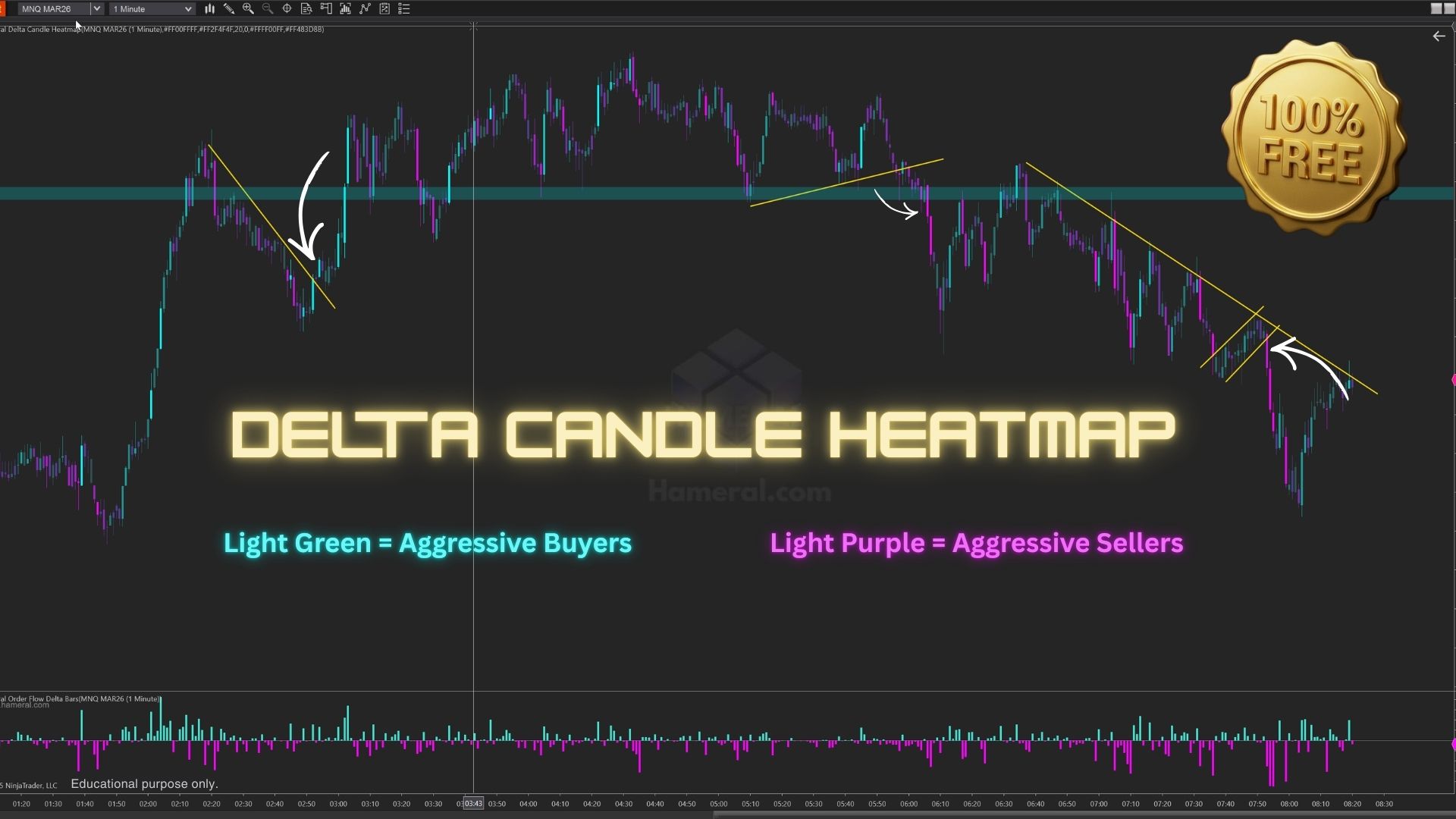
Hameral Delta Heatmap colors each candle with a heatmap based on Delta intensity (aggressive buying vs. aggressive selling).
The indicator estimates trade aggressor from bid/ask behavior, builds per-bar Bid vs. Ask volume, calculates the bar’s Delta, then compares it to the highest absolute Delta over a user-defined lookback window to scale color brightness.
Positive Delta candles are shaded using the Buy gradient, negative Delta candles use the Sell gradient, with adjustable minimum Delta filtering and outline opacity for clean visual contrast.
This heatmap candles shows who is in control inside each candle:
- Bright BUY candle → aggressive buyers dominated that bar
- Bright SELL candle → aggressive sellers dominated that bar
- Dim candle → weak participation / balanced order flow
- Sudden brightness spike → relative abnormal participation compared to recent bars
Important: This is order-flow intent, not direction prediction.
🔍 Delta Heatmap Candles Functions
Use the indicator on a clean chart with no other indicators.
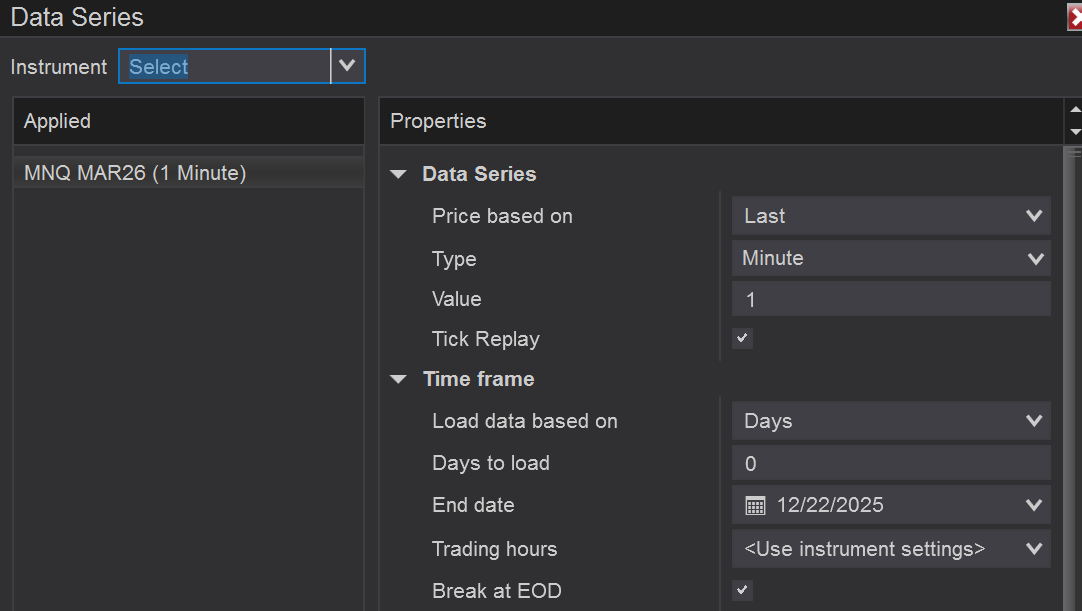
Set Days to Load to 0 (current session only) for faster loading and optimal performance.
🔔 01. Heatmap Settings
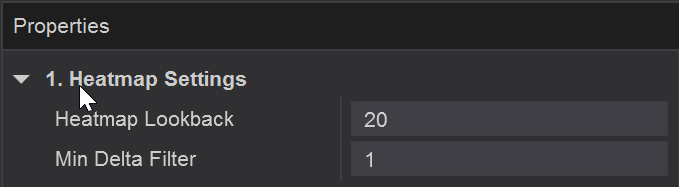
Heatmap Lookback
Defines how many previous bars are used to compare delta values.
The larger the lookback, the more “relative” the brightness becomes.
Min Delta Filter
Sets the minimum delta required for a candle to be colored.
Candles with delta below this value will keep the default chart color, filtering out low-activity noise.
02. Colors
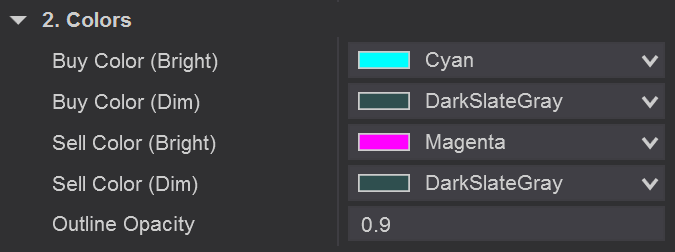
Buy Color (Bright)
Color used for candles with extreme positive delta, where aggressive buyers dominate.
Buy Color (Dim)
Color used for low positive delta, indicating weak or fading buying pressure.
Sell Color (Bright)
Color used for candles with extreme negative delta, where aggressive sellers dominate.
Sell Color (Dim)
Color used for low negative delta, indicating weak or fading selling pressure.
Outline Opacity
Controls the transparency of the candle outline, helping visually separate strong and weak delta candles.
How to use Delta Heatmap Candles Indicator?
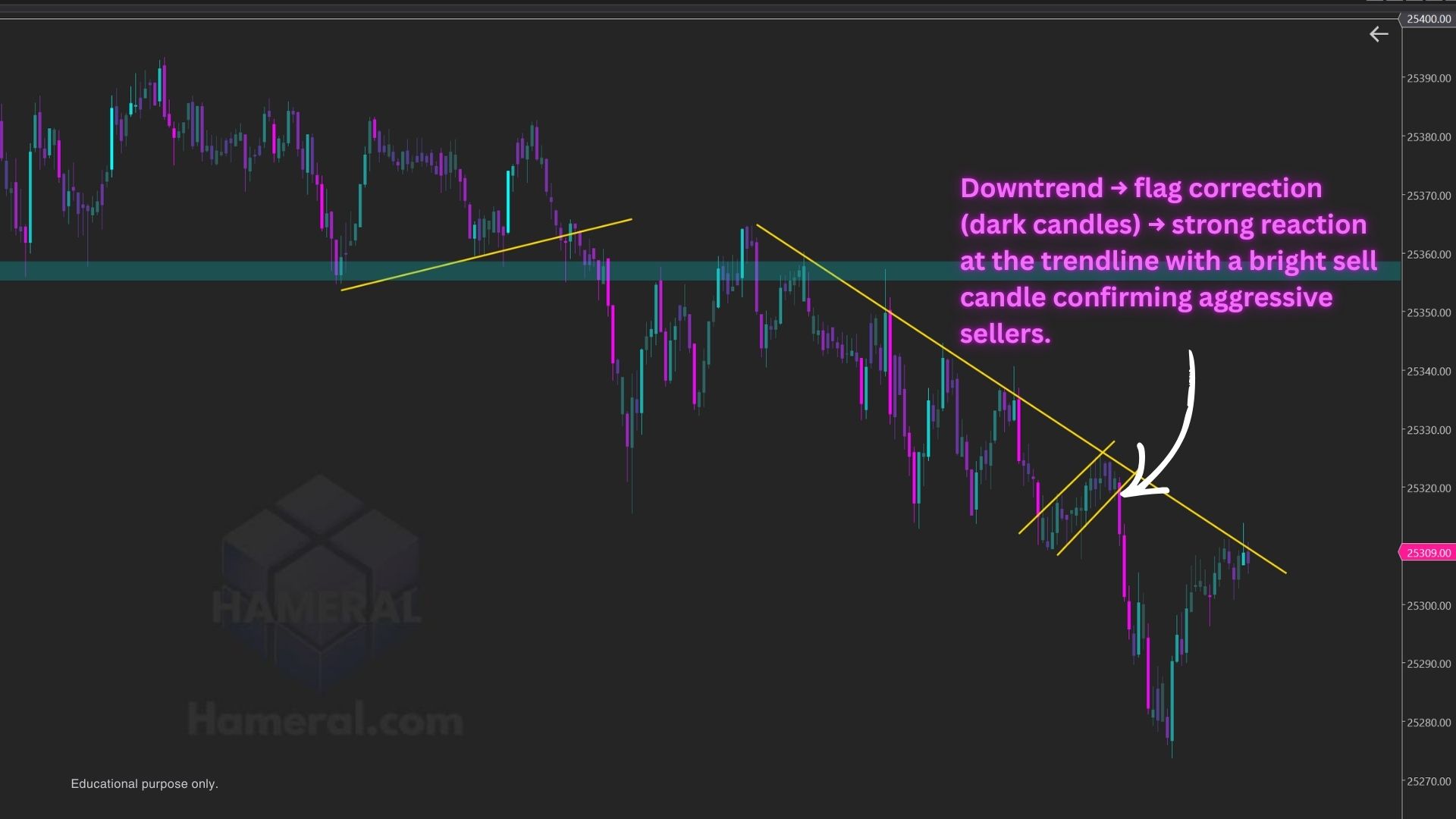
1️⃣Setup 1 – Trend Continuation
- Market already trending (EMA / VWAP / structure)
- Pullback occurs on dim or neutral heatmap candles
- Trend resumes with a bright heatmap candle
Entry Logic
- Direction: Trade in the direction of the trend
- Entry: First bright delta candle in trend direction after the pullback
- Stop: Below pullback low / above pullback high
- Target: Structure level or measured move
Why It Works
Pullbacks lack aggressive participation, then the trend resumes when real money steps back in.
🧠 Rule of Thumb
Trend + bright heatmap in trend direction = continuation fuel
2️⃣ Setup 2 – Absorption & Exhaustion (Reversal Clues)
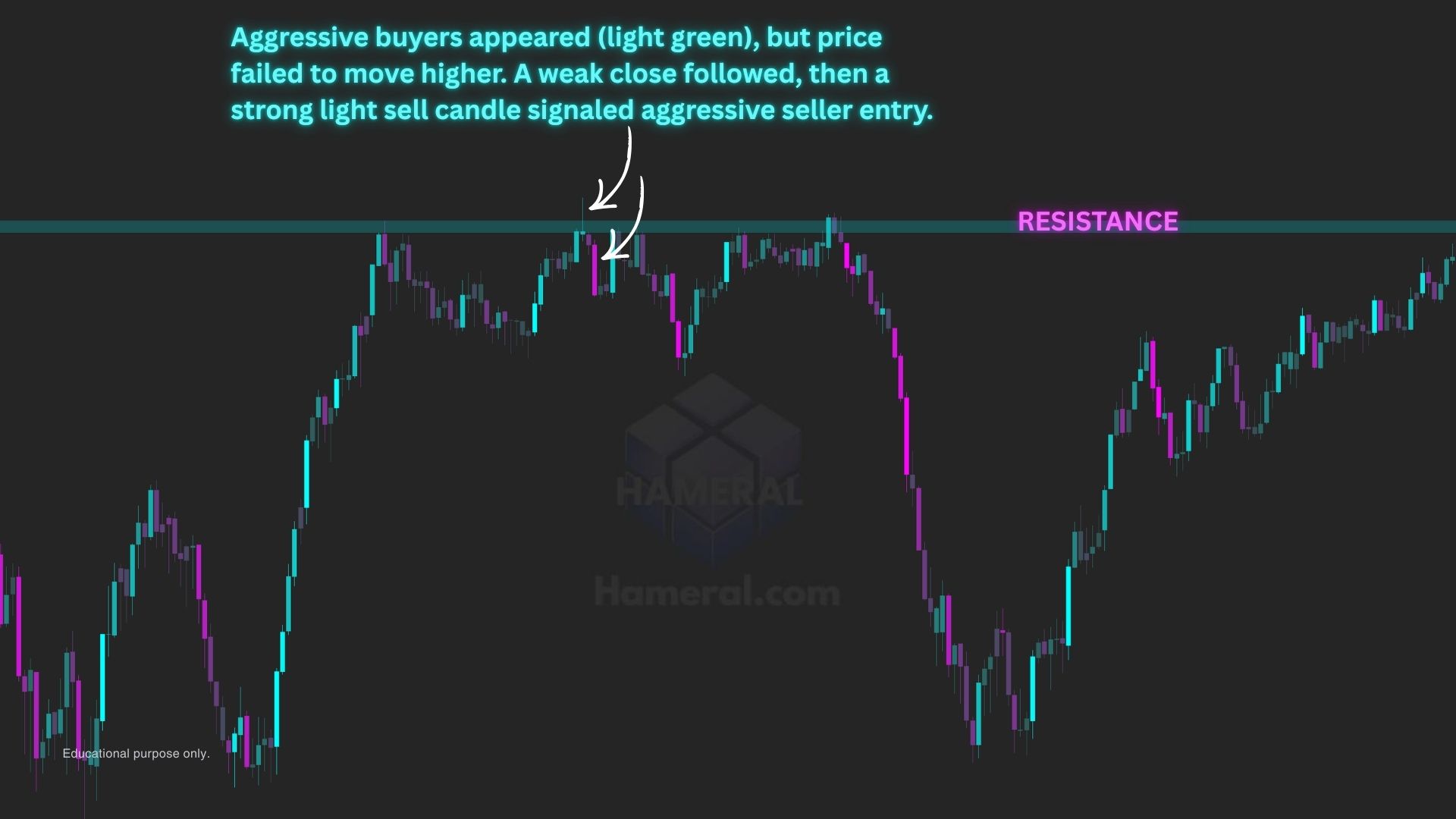
What to Look For
- Very bright heatmap candle
- But with:
- Little price progress
- Long wicks
- Location at a key level (VWAP, prior high/low, value area edge etc.)
Interpretation
- Aggressive buyers or sellers are active but price is not moving
- Liquidity is being absorbed by limit orders
Trade Idea
- Do NOT fade immediately
- Wait for confirmation:
- Opposite-colored heatmap candle
- Failure to make a new high / low
🧠 Translation
Bright ≠ strong if price isn’t moving.
This is where many traders get trapped.
3️⃣ Setup 3 – Breakout Validation (Fakeout Filter)
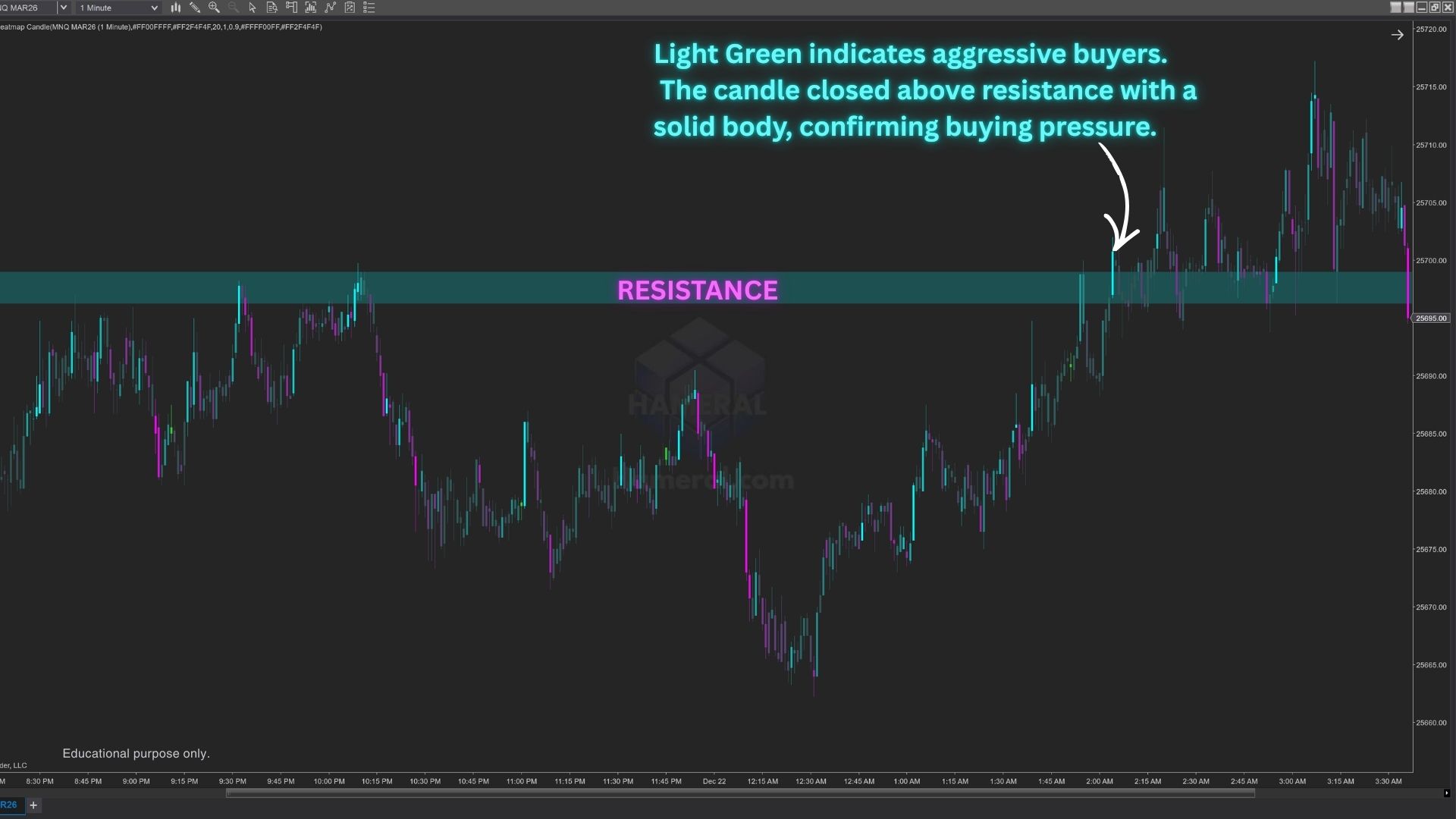
Real Breakout
- Price breaks a key level
- Heatmap goes bright immediately
- Follow-through candles remain colored
Fake Breakout
- Price breaks a key level
- Heatmap stays dim or flips color
- Next candle loses brightness
How to Use
- Only accept breakouts that light up with aggressive participation
- Skip trades where price breaks but delta does not confirm the move
🧠 Think
Price without aggressive volume = suspect
4️⃣ Entry Timing Refinement (Sniper Entries)
Use this only after you already have a directional bias.
Example
- You plan to go long at VWAP
- Instead of entering blindly, wait for the first bright BUY heatmap candle
- Enter on the candle close or on a shallow pullback
This helps you avoid:
- Catching falling knives
- Entering too early before real participation appears
5️⃣ Trade Management (Stay In or Get Out)
Stay in the trade if:
- Directional candles remain colored
- Heatmap brightness does not collapse
Warning Signs:
- Candles in your trade direction turn dim
- Opposite heatmap color appears
- Brightness spikes against your position
These signals often appear before price reverses.
6️⃣ What NOT to Do ❌
Do NOT:
- Trade every bright candle
- Use the indicator as a standalone entry system
- Assume bright candles mean bullish or bearish forever
This is context-dependent order flow, not a magic arrow.
Best Combos (Where This Indicator Shines)
You’ll get the most value when combining the delta heatmap with:
- VWAP / Anchored VWAP
- Session High / Low
- Value Area High / Low
- Market structure (HH/HL, LL/LH)
- Time filters (RTH open, NY lunch, power hour)
Delta without location is only half the story.
Quick Cheat Sheet
| Candle | Meaning |
|---|---|
| Bright + trend | Continuation |
| Bright + no movement | Absorption |
| Dim pullback | Healthy correction |
| Bright at key level | Decision zone |
| Color flip | Momentum shift |
🛠️ How to Install it in NinjaTrader 8
- Download the indicator zip file
- In NinjaTrader, go to Tools → Import → NinjaScript Add-On
- Select the ZIP file and click Open
- Restart NinjaTrader 8
- Right-click chart → Indicators → Search “Hameral”
- Add it to your chart and customize it
📥 Get The Order Flow Basic Pack For FREE
Just sign up for our newsletter and get the full Hameral Basic Order Flow Pack instantly. This includes:
- ✅ Volume Profile Basic
- ✅ VWAP Basic
- ✅ Delta Bars Basic
- ✅ Footprint Basic
- 🎁 Bonus: Super Oscillator + Trading Template
💼 Need Advanced Order Flow Tools?
Looking for more flexibility and institutional-grade control? You’ll love the Hameral Pro Order Flow Pack, which includes:
- 📊 Session-by-session & Multi-Timeframe Volume Profiles
- 📌 Anchored Volume Profile
- 📈 Multi-Session VWAP with Standard Deviation Bands
- 📍 Anchored VWAP
- 📉 Cumulative Delta
- 🕯️ Advanced Footprint Chart — visualize order flow inside each candle, including absorption, delta, and more
- ⚡ Super Oscillator PRO with Market Extension Trigger
Frequently asked questions
Top Frequently-Asked Questions About Hameral Products
Do you have a refund policy?
No refunds. All sales are final once the license key is issued. We provide lifetime updates instead.
Installation steps?
Download the zip. Go to Tools -> Import -> NinjaScript Add-On -> Choose the zip file -> Ok.
Important! After the license is ready, close the platform and reopen it.
How to Get My Indicators Fast?
✅ After payment, you can download instantly the pack.
✅ Within 24 hours (usually much faster), your license will be activated and you can use the indicators.
✅ After Installation, you will find the indicators under Indicators tab in NinjaTrader.
✏️ Anchored Volume Profile and Anchored VWAP are drawing tools - just open your Drawing Tools (pen icon) to use them.
How to add the Templates in NinjaTrader 8?
Good to know:
- Templates are different from Workspaces.
- Templates are simple setups for a specific chart.
- Workspaces are the collection of all your charts.
Steps:
1. Unzip the Templates folder.
2. Go to: Documents -> NinjaTrader 8 -> templates -> Chart
Paste the templates here.
3. Open a new chart -> Right click -> Templates -> Load -> Select the desired template.
Where do I find Hameral indicators that I ordered?
You will find your indicators in your website account.
You can also download them directly from the email.
Where do I find the indicator properties and documentation?
Go to the menu and click on "NinjaTrader Indicators" → "Documentation".
Platform & version requirements?
NinjaTrader® 8 (build 8.1.2 or later). Works on either the free or lifetime license; no 3rd-party DLLs.
Can I try it before purchase?
No. To keep the code fully secure, we do not offer trials or demo keys.
But, you can download our FREE Indicators to test the quality of our products.
How do I update the indicators?
1. Remove the old assembly
- Tools -> Remove NinjaScript Assembly
- Choose the pack you want to update -> Click "Remove"
- When finished, close the platform.
2. Import the updated pack
- Tools -> Import -> NinjaScript Addon...
- Select the ZIP file with the indicators (do NOT unzip the pack), then click Open.
How to add the Workspaces in NinjaTrader 8?
1. Unzip the Workspace files.
2. Go to: Documents -> NinjaTrader 8 -> workspaces
Paste the workspace files here.
3. In the platform, open Workspaces and select the one you want.
If it doesn’t appear, restart the platform.
Where do I find the updated indicators and files?
Every time a new version is released, the old one will be replaced in your account on our website.
Make sure you save locally the version you purchased if you don’t want to use the updated versions.